Os impostos alfandegários são de responsabilidade dos clientes, mas a logística padrão oferece suporte ao DDP para a maioria dos países, com isenção de impostos, como EUA, Alemanha, Reino Unido, Canadá, França, Itália, Portugal, Áustria, Japão...

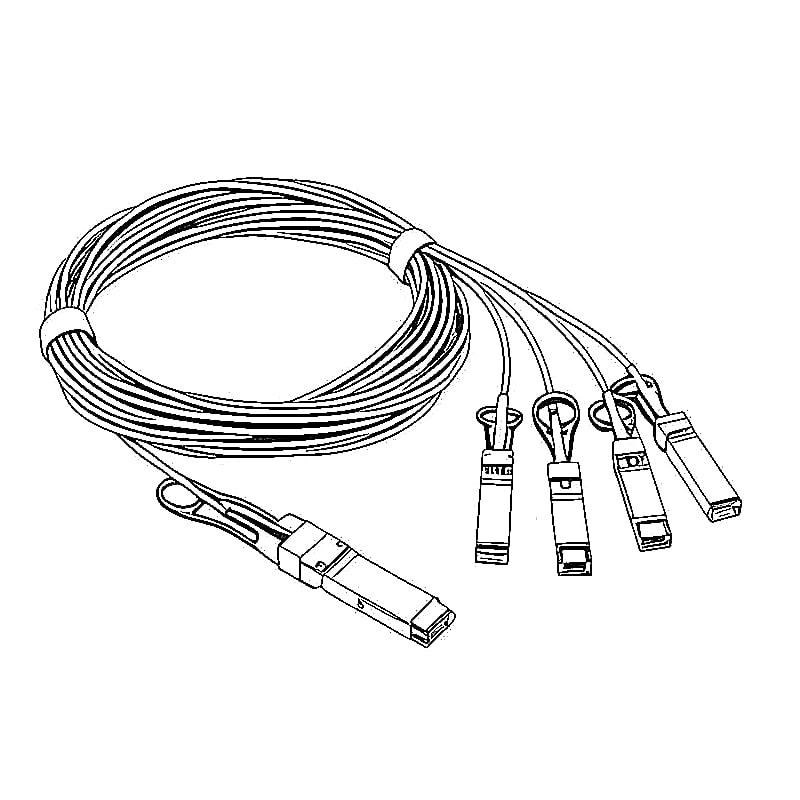
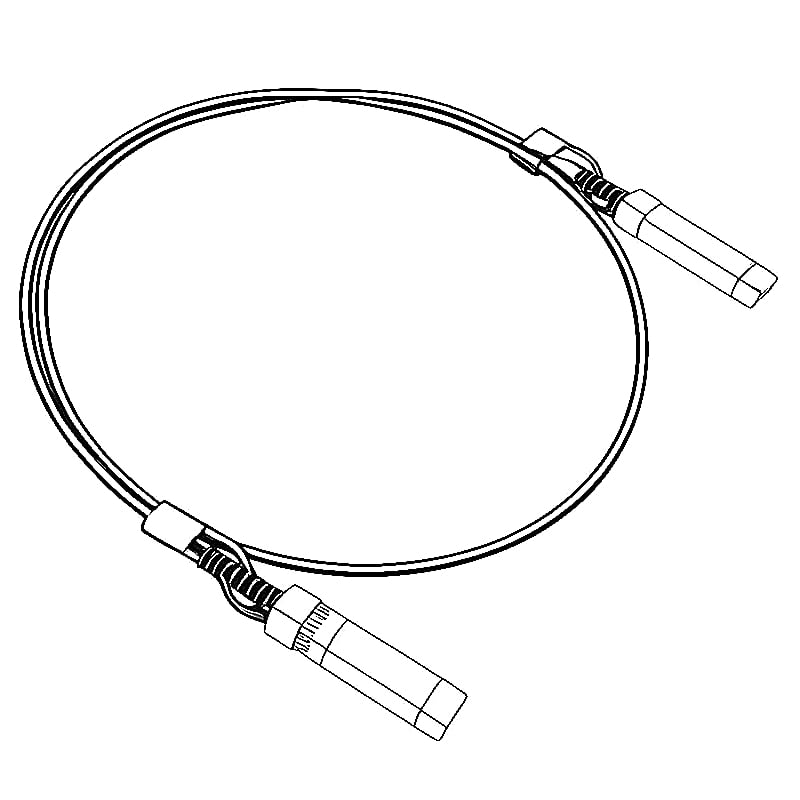
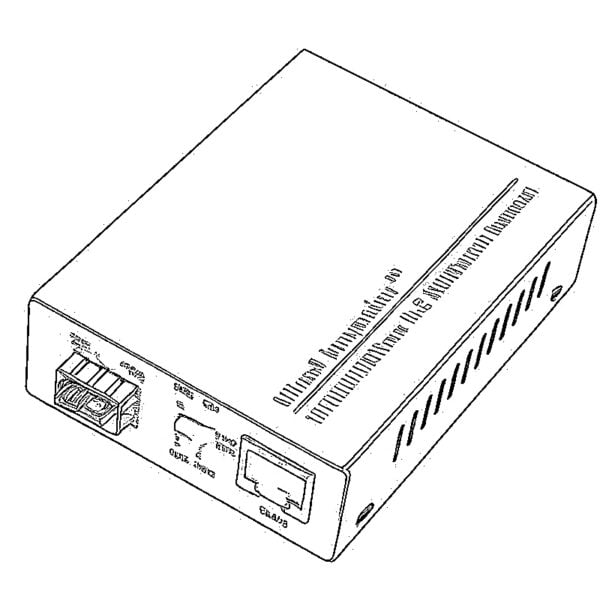
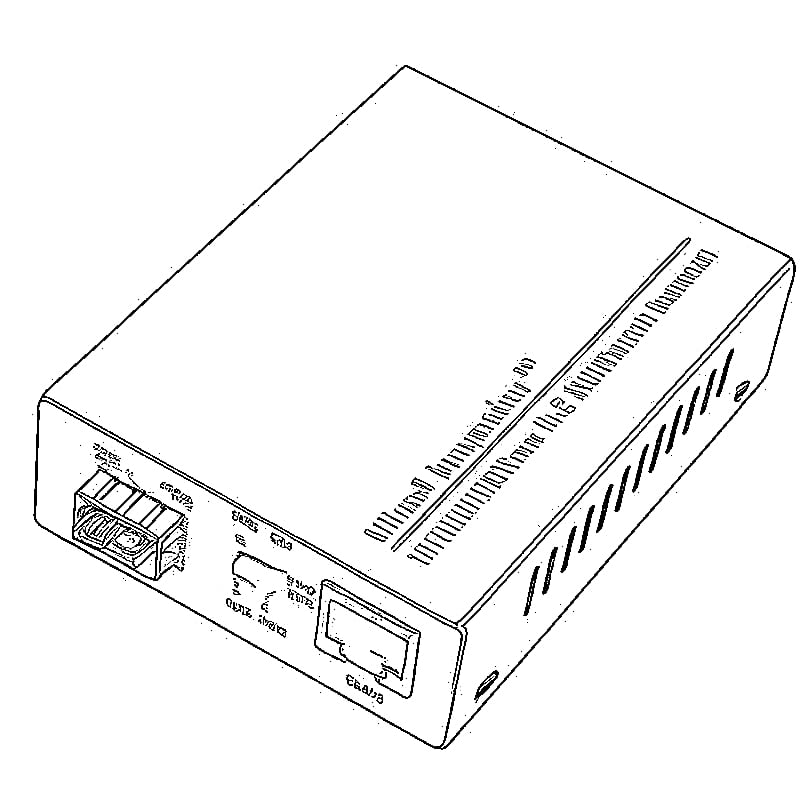


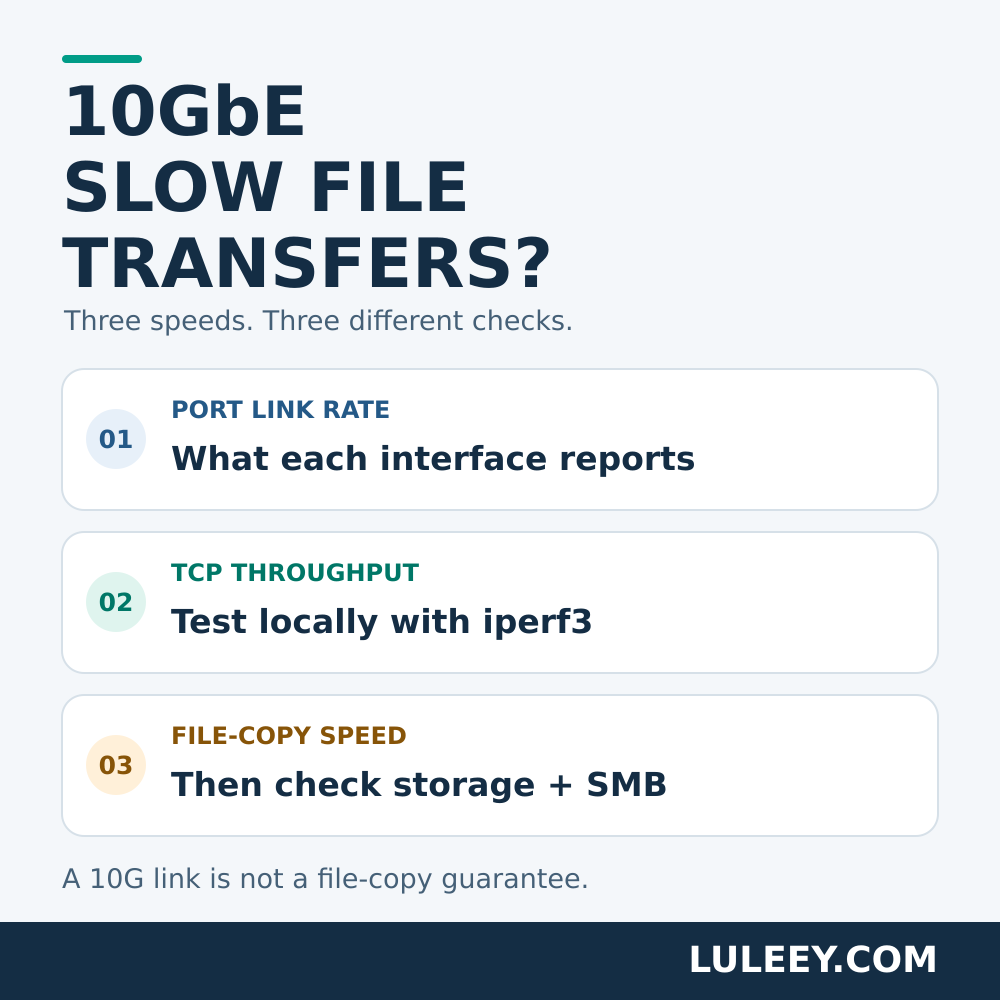
Solução de problemas 10 GbE transferências lentas de arquivos Começa-se por distinguir três valores: a velocidade da conexão da porta, a taxa de transferência entre dois computadores e a velocidade da própria cópia do arquivo.
Um indicador de link de 10G confirma a velocidade do link — não uma velocidade garantida NAS velocidade de transferência. Antes de substituir um módulo SFP+, execute um teste de rede local entre os mesmos pontos finais utilizados para a cópia lenta. Em seguida, compare os resultados com uma transferência controlada de arquivos.
Transferências lentas de arquivos em 10GbE: verifique primeiro as unidades de medida
As velocidades de rede costumam ser indicadas em Gbps ou Mbits/s. As ferramentas de cópia de arquivos geralmente exibem MB/s ou MiB/s.
Usando unidades decimais:
- 10 Gbps ÷ 8 = 1,25 GB/s antes da sobrecarga do protocolo.
- 100 MB/s × 8 = 800 Mbps.
Nenhum desses valores constitui um diagnóstico. Uma cópia a 100 MB/s pode estar limitada por um segmento de rede mais lento, pelo armazenamento ou pelo aplicativo. Verifique também se a ferramenta de cópia utiliza MiB/s em vez de MB/s decimal.
1. Confirme qual caminho de rede você está testando
Anote o caminho do cliente até o NAS, incluindo todos os switches, conversores e uplinks intermediários. Verifique a taxa de operação real em cada interface relevante — não apenas a capacidade anunciada do adaptador.
Utilize o endereço NAS atribuído à interface com fio desejada. Um nome de host pode direcionar para uma interface diferente. Confirme se a transferência não está sendo feita por Wi-Fi, VPN, porta de gerenciamento ou por um caminho de roteamento inesperado.
No caso de um módulo SFP+ de cobre, a velocidade elétrica voltada para o host e a negociação RJ45 podem variar. Uma combinação adaptável de velocidade compatível pode apresentar 10G no host, enquanto seu par de cobre opera a 2,5G. Consulte o guia da LuLeey sobre conectando uma porta SFP+ de 10G a uma porta RJ45 de 2,5G.
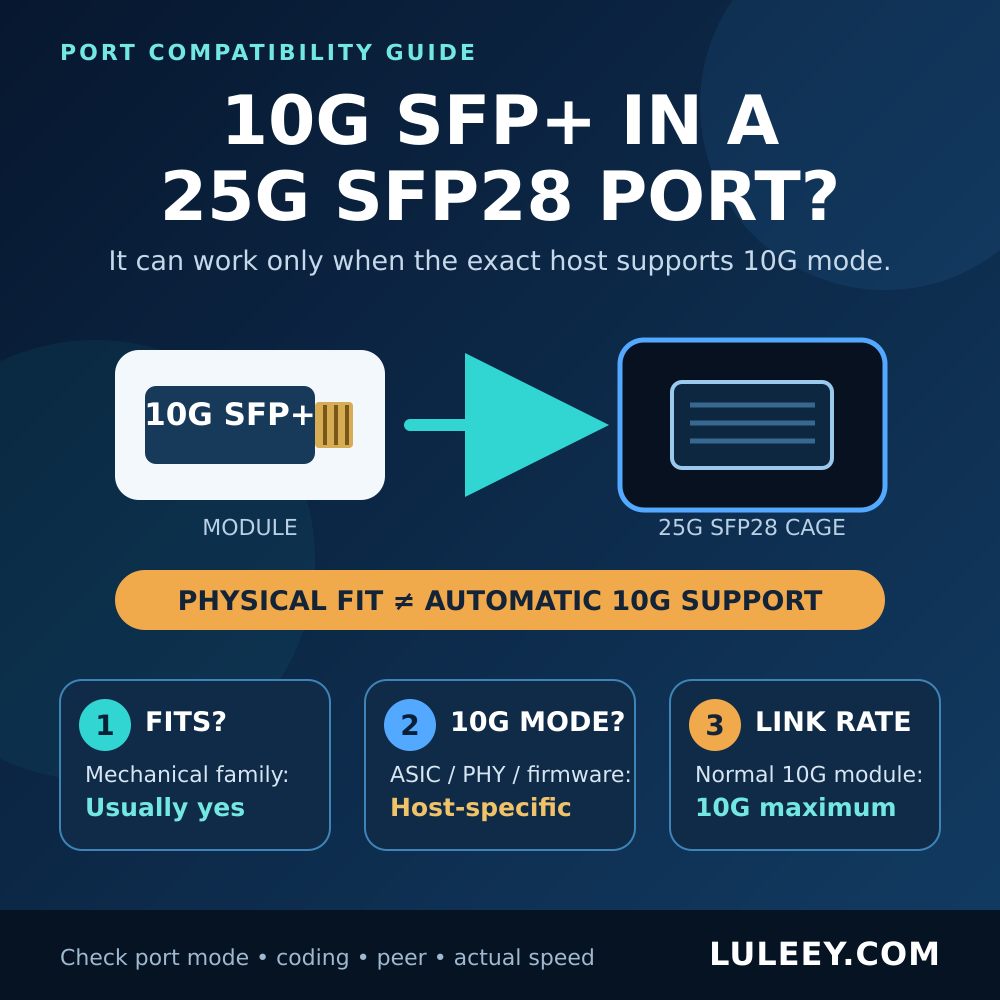
A compatibilidade física, o modo SerDes do host, as taxas negociadas e a taxa de transferência útil são verificações distintas. Registre os modelos exatos do host e do módulo, o chipset/PHY do host, o firmware, o driver, as configurações da porta e a codificação do módulo antes de tirar conclusões sobre a compatibilidade. Um compartimento marcado como SFP+ não é suficiente para determinar isso.
2. Realizar um teste de rede local sem copiar arquivos
Utilize duas máquinas autorizadas no caminho afetado. O ideal é executar o servidor no próprio NAS; um servidor diferente apenas testa o caminho até esse servidor. Não realize o teste em relação a localhost ou um site de teste de velocidade da Internet.
Esses comandos pressupõem um ambiente confiável e compatível iperf3 instalação. A ESnet não oferece suporte oficial ao iperf3 no Windows; verifique cada versão do Windows separadamente ou utilize uma plataforma compatível. Uma máquina virtual ou contêiner representa mais um caminho a ser documentado. Consulte o Perguntas frequentes sobre compatibilidade com a ESnet.
Neste exemplo, o endereço LAN do servidor é 192.168.10.20. Substitua-o pelo seu endereço real. Realize o teste durante um período de baixo tráfego: testes de taxa de transferência podem congestionar a rede. Permita o tráfego TCP na porta 5201 apenas entre as máquinas de teste; não exponha o servidor à Internet.
No servidor:
iperf3 -s -B 192.168.10.20No cliente, execute estes comandos separadamente:
iperf3 -c 192.168.10.20 -t 30
iperf3 -c 192.168.10.20 -t 30 -R
O primeiro envia do cliente → servidor. -R envia do servidor → para o cliente. Trata-se de testes consecutivos, e não de tráfego bidirecional simultâneo.
Se um único fluxo estiver lento, compare quatro fluxos:
iperf3 -c 192.168.10.20 -t 30 -P 4
iperf3 -c 192.168.10.20 -t 30 -P 4 -R
Salve o resumo final do receptor; para testes paralelos, use o agregado [SOMA] resultado. Registre o uso da CPU, as retransmissões, quando relatadas, e as alterações nos contadores de interface. Em seguida, interrompa o servidor com Ctrl+C. O comportamento do comando está documentado no manual oficial do iperf3.
Os testes comuns geram tráfego sem ler o arquivo de origem nem gravar um arquivo de destino. Eles ainda dependem dos terminais, do software e do caminho de rede — não apenas do cabo.

3. Deixe que os resultados determinem a próxima verificação
Os padrões abaixo são pistas diagnósticas, não critérios universais de aprovação ou reprovação.
| O que você observa | Próximo passo útil |
|---|---|
| Os testes de TCP são muito mais rápidos do que a cópia de arquivos na mesma direção | Analise primeiro a carga de trabalho de armazenamento e compartilhamento de arquivos; verifique se ambos os testes utilizam o mesmo caminho. |
| O tráfego está lento nos dois sentidos | Verifique novamente todas as taxas de conexão, a CPU do endpoint, a placa de rede (NIC) e seus drivers, bem como os dispositivos intermediários. |
| Apenas um sentido é lento | Compare os pontos finais de envio e recebimento, os erros, as perdas de pacotes e quaisquer limites de adaptação de taxa. |
| Quatro fluxos apresentam desempenho significativamente superior ao de um único fluxo | Verifique os limites por fluxo ou por ponto final; não considere a velocidade agregada como uma garantia de tráfego em fila única. |
| O desempenho piora à medida que os erros ou eventos de conexão aumentam | Isole o segmento físico afetado e repita o procedimento nas mesmas condições. |
Anote a versão do iperf3 em ambas as extremidades. As orientações mais antigas, que descrevem todos os testes do iperf3 como unithreaded, dependem da versão: a ESnet documenta uma thread por stream a partir da versão 3.16. Isso não significa que quatro streams sempre serão benéficos.
Não altere o MTU, o controle de fluxo, os drivers e os módulos ao mesmo tempo. Mantenha uma configuração de referência que você saiba que funciona, faça uma alteração justificada e repita o mesmo teste.
4. Comparar uma cópia controlada de arquivo
Se o desempenho do TCP estiver bom, copie um arquivo grande comum para uma pasta de teste dedicada, sem sobrescrever os dados existentes. Verifique em ambas as direções. Em seguida, compare uma pasta com arquivos pequenos.
Monitore a velocidade de leitura da fonte, a velocidade de gravação de destino e o uso da CPU. Um pico inicial rápido seguido por uma desaceleração pode indicar que os caches estão esgotados. Muitos arquivos pequenos geram operações repetidas de metadados. Pequenas e médias empresas A assinatura e a criptografia podem aumentar a carga de trabalho da CPU; mantenha as proteções de segurança necessárias ativadas.
Orientações da Microsoft para solução de problemas em pequenas e médias empresas explica esses efeitos relacionados ao armazenamento, ao cache e à carga de trabalho. Esses são motivos para investigar o caminho de cópia do arquivo — e não uma prova de que seu NAS específico tenha uma falha no disco.
Por exemplo, um hipotético O resultado de 9 Gbps em um teste TCP na mesma direção e de 220 MB/s em uma cópia de arquivo direciona a próxima verificação para o armazenamento e o compartilhamento de arquivos. Isso não confirma todas as condições da rede nem identifica um componente com falha.
5. Investigue os módulos quando as evidências apontem nessa direção
Se os testes de rede também apresentarem resultados insatisfatórios, compare os contadores de interface antes e depois de cada execução. O aumento dos erros de CRC/FCS justifica a verificação do link físico em questão; perdas sem erros de CRC podem ter outras causas, incluindo congestionamento. A contagem de retransmissões TCP, por si só, não identifica um módulo com defeito.
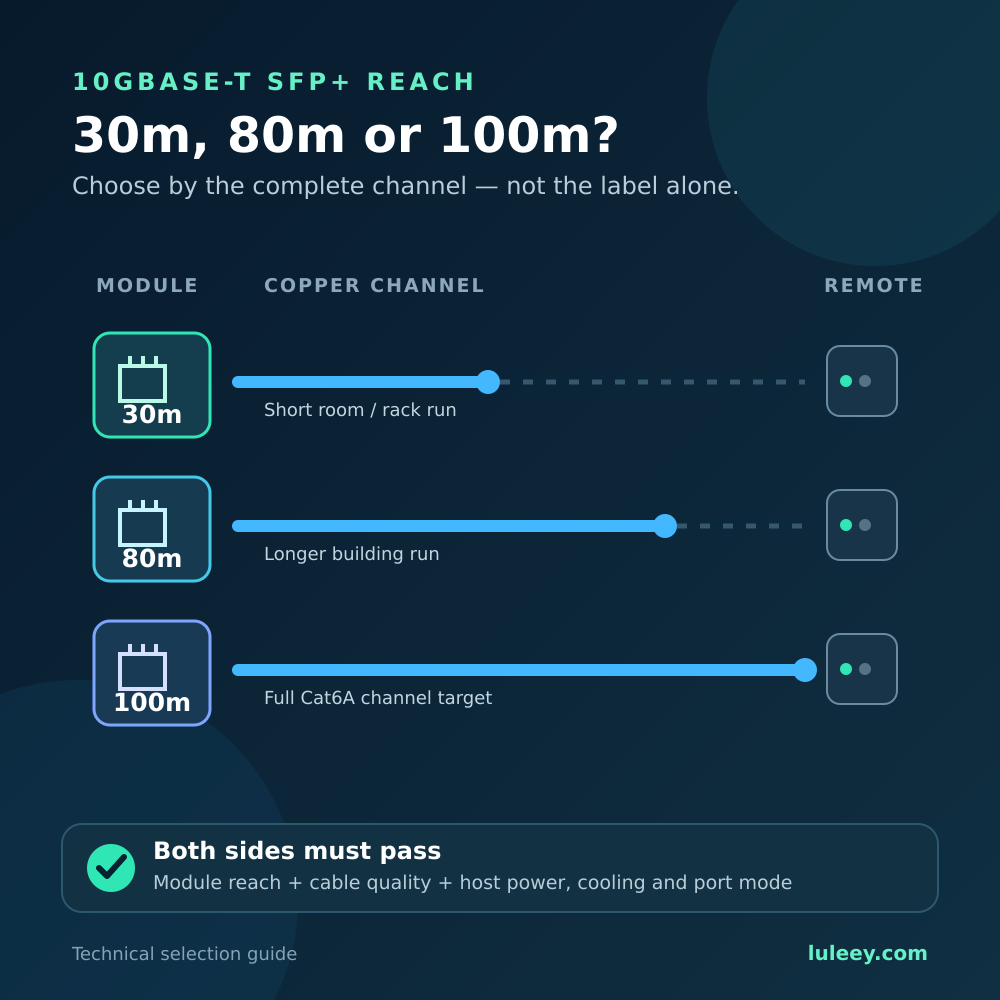
Para conexões de cobre, substitua por um cabo que se saiba estar em boas condições, dentro do alcance documentado do módulo selecionado. Para conexões ópticas, verifique o tipo de fibra, os transceptores compatíveis, o estado do conector e os limites de potência de recepção específicos do modelo. Inspecione e limpe com ferramentas adequadas; nunca olhe diretamente para dentro de uma fibra ou porta óptica.
Verifique também os requisitos de alimentação e refrigeração do servidor. Se a interface ficar caindo e voltando repetidamente, siga as instruções do documento separado Lista de verificação para oscilação de link em 10GBASE-T SFP+.
Altere um componente por vez. Repita a configuração original, se for seguro: um resultado que decorra de um componente específico é mais útil do que uma melhoria pontual após várias alterações.
Antes de comprar um módulo diferente
LuLeey’s Solução de atualização do HomeLab para 10G inclui opções de conexão por cobre, DAC/AOC e óptica. Seu Página do módulo 10GBASE-T SFP+ para RJ45 oferece várias variantes; verifique o hardware selecionado, os modos compatíveis e o alcance em relação à sua configuração atual. Não presuma que todas as opções funcionem da mesma forma.
Para obter dicas úteis sobre compatibilidade, envie uma mensagem para LuLeey:
- Ambos os modelos de terminal, o chipset/PHY do host, o firmware e os drivers
- Configurações de variante do módulo, codificação, modo do host e porta
- Tipo de cabo, comprimento e trajeto completo da conexão
- Taxas observadas em ambos os lados de qualquer conversor ou módulo de cobre
- Resultados de TCP (avançado/reverso), uso da CPU e alterações nos contadores
- Observações sobre a direção da cópia de arquivos, velocidade, carga de trabalho e armazenamento
Comece pela comparação, não pela substituição: Confirme o caminho, teste o TCP em ambas as direções e, em seguida, compare as cópias dos arquivos. Isso indica onde deve ser realizado o próximo teste.
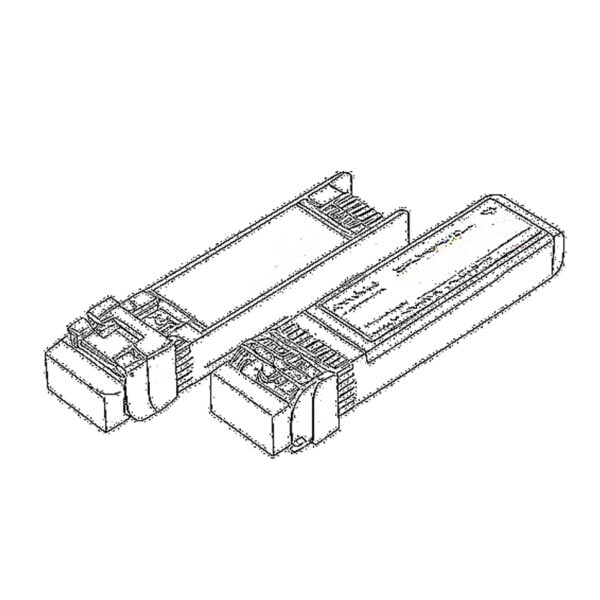 SFP/SFP+ (1G/2,5G/5G/10G)
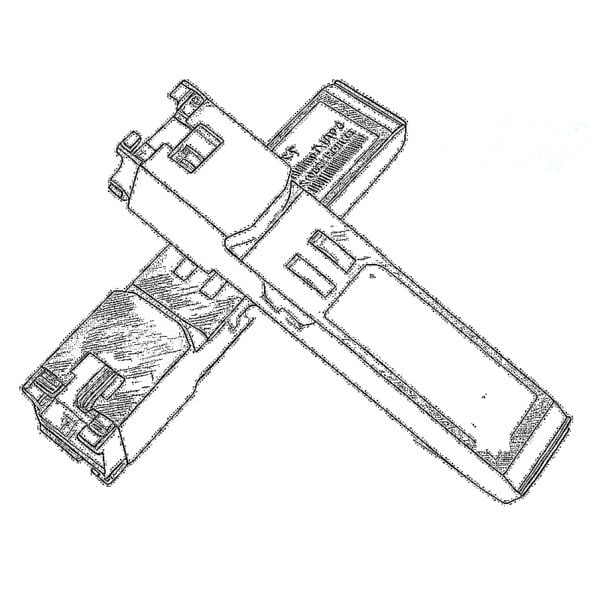 SFP-T (1G/2,5G/10G)
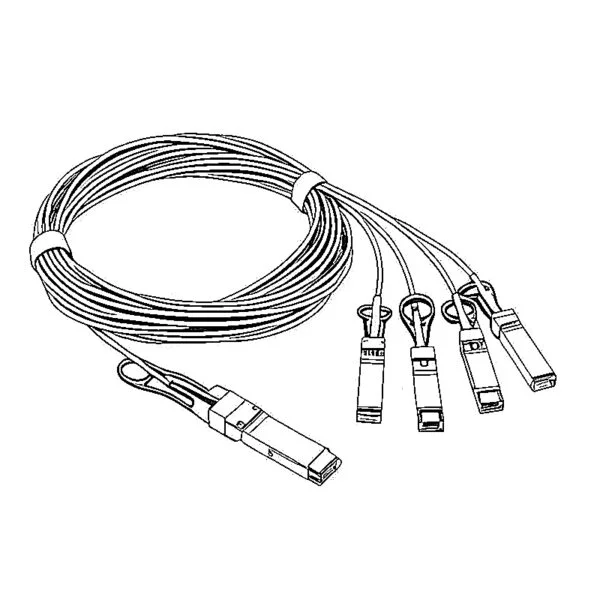 Cabo AOC 10G/25G/40G/100G
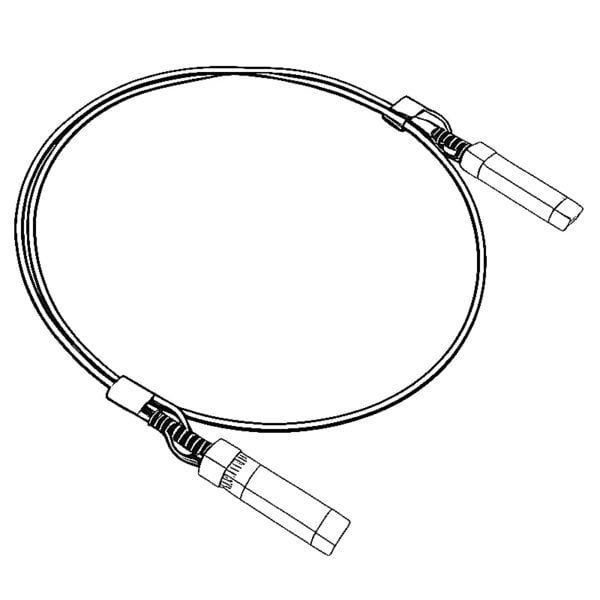 Cabo DAC 10G/25G/40G/100G
 QSFP28 QSFP+ SFP28 100G/40G/25G
 Conversores de mídia de cobre para fibra
 Placa PCBA do conversor de mídia de fibra
 Conversores de mídia de fibra OEO
 Conversores de mídia serial para fibra
 Conversores de mídia de vídeo para fibra
 1000M GPON/EPON ONU
 10G EPON ONU/XG-PON/XGS-PON
 2,5G GPON/XPON STICK SFP ONU
 POE GPON/EPON ONU
 ONT GPON/EPON sem fio
 EPON OLT
 GPON OLT
 Módulo SFP PON
 Switches industriais
 Switches gerenciados
 Switches POE
 Switches não gerenciados
 Cabos de fibra MTP/MPO
 Cassetes de fibra óptica
 Loopback de fibra óptica
 Cabos ópticos e pigtails de fibra
 Divisores ópticos e caixas divisoras
 Conectores de flange de fibra
 Adaptadores ópticos
 Atenuador óptico
 Conector rápido e painel de conectores
 Amplificador CATV
 Receptor óptico CATV
 Localizador visual de falhas
 OTDR
OTDR Medidor de potência óptica
 Identificador de fibra óptica
 Limpadores de fibra óptica
 Cortadores de fibras e extratores de fibras
 Ferramentas de cobre