Customs duties are the responsibility of customers, but standard logistics support DDP to most countries, duty-free such as US, DE, UK, CA, FR, IT, PL, AT, JP…

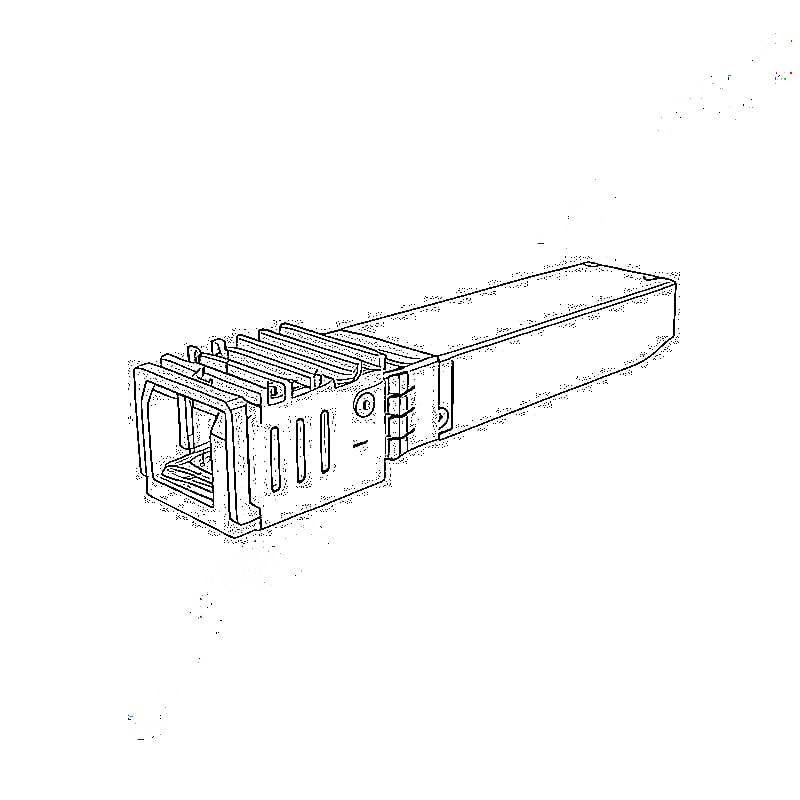
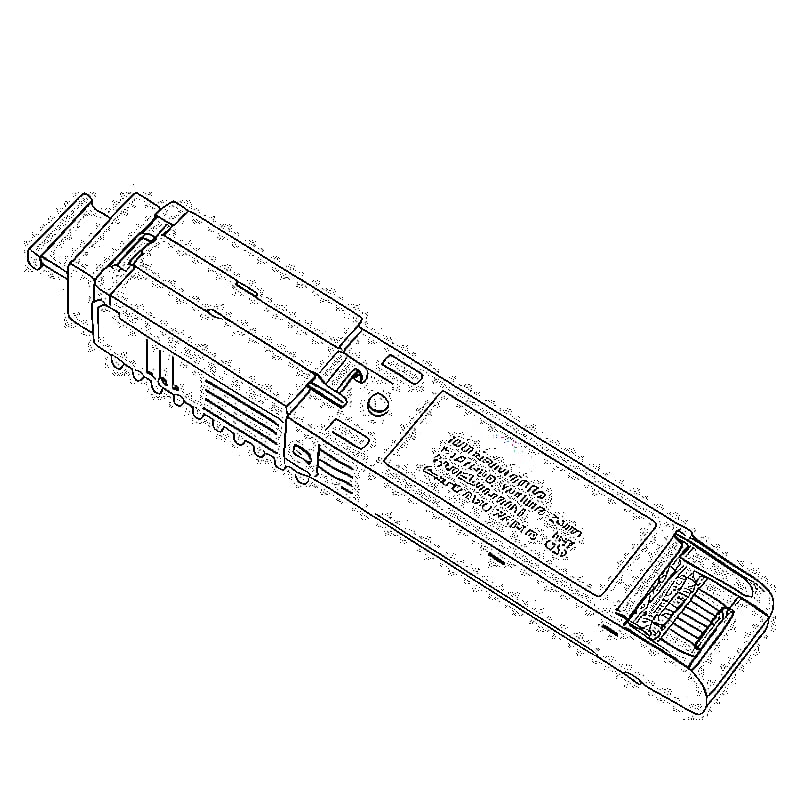
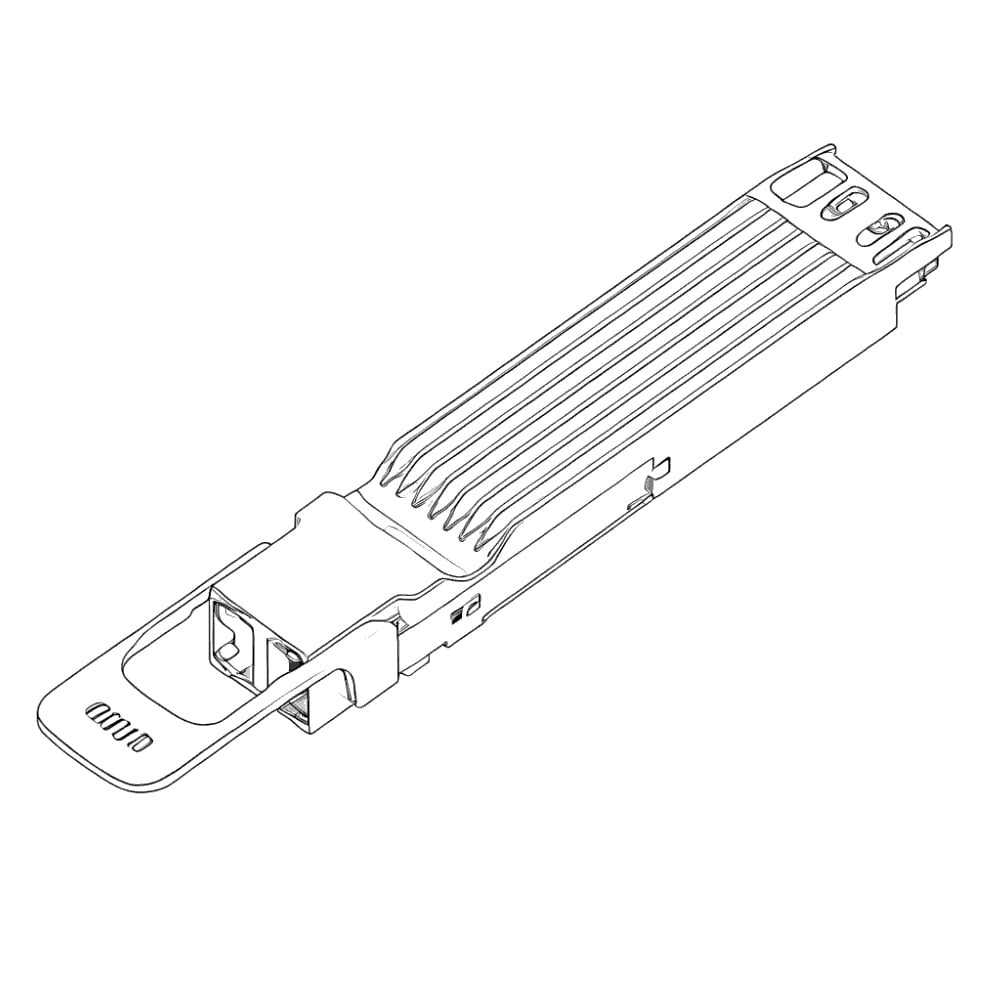
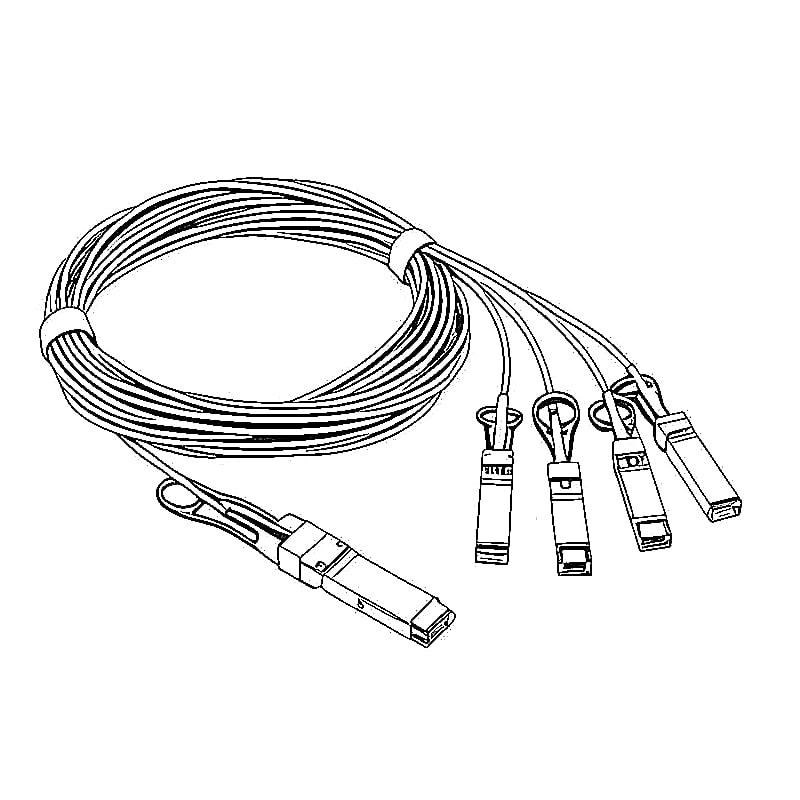
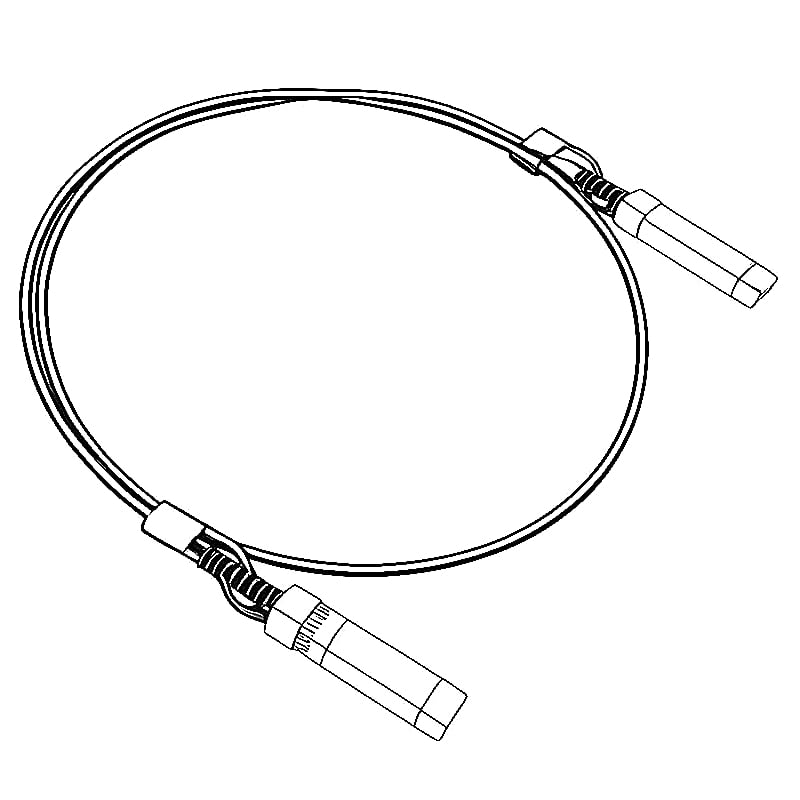


A 25G FEC mismatch can keep an SFP28 link down even when both modules are detected, the fiber is connected and received optical power looks reasonable. At 25GbE, the two endpoints must agree on more than speed. Their active Forward Error Correction mode must also be compatible with the exact PHY, media and platform.
Do not replace the optics first. Record the configured and operational FEC at both ends, confirm the port is really running one 25G lane, then make one controlled change based on the equipment documentation.
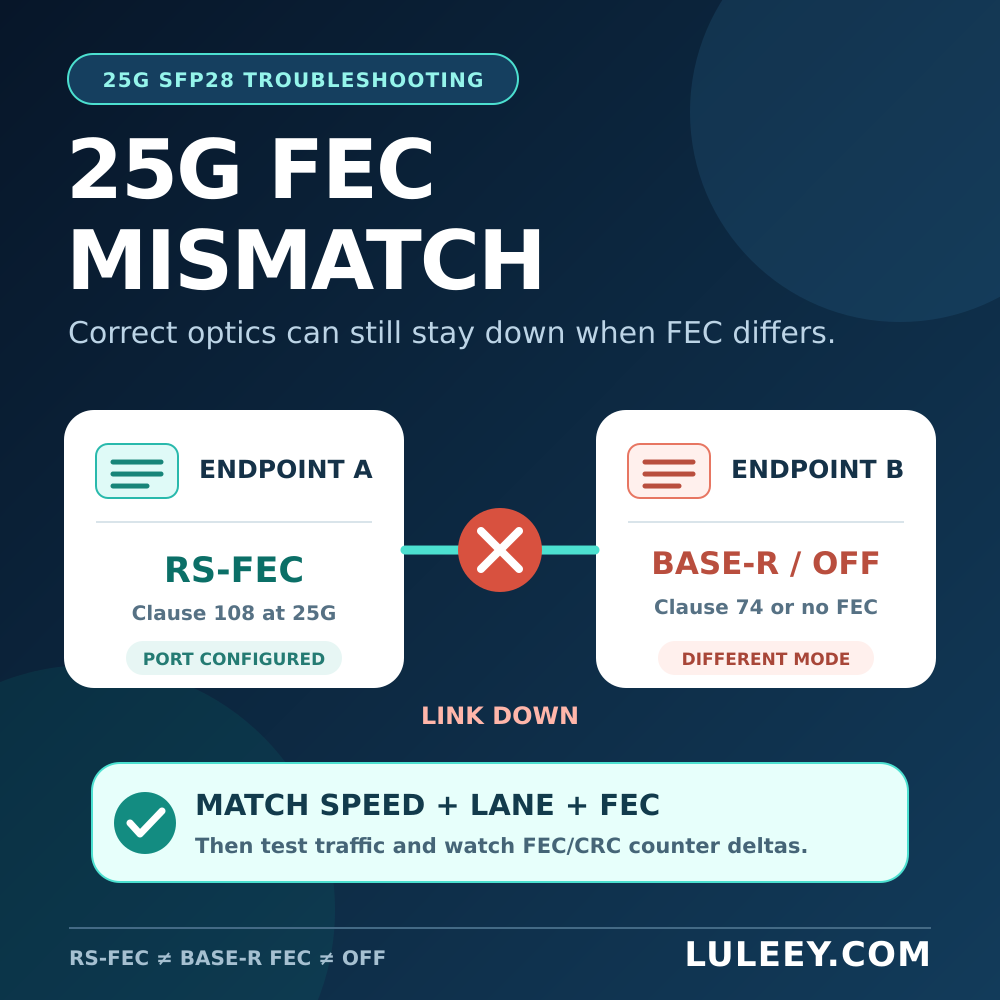
25G FEC Mismatch: The Short Answer
FEC adds redundant information before transmission so the receiver can correct some bit errors. The receiver must use the matching decoder. If one endpoint sends RS-FEC while the other expects BASE-R FEC or no FEC, the receiver may not obtain FEC/PCS lock and the link can remain down.
| Mode | Other labels found in interfaces | Important point |
|---|---|---|
| RS-FEC | Reed-Solomon FEC; 25G Clause 108; sometimes shown with a Clause 91-derived label | Stronger correction; required or expected for some 25G PHY/media combinations |
| BASE-R FEC | Firecode, FC-FEC, Clause 74 | A different code from RS-FEC; the two are not interchangeable |
| No FEC | Off, None | Valid only where the exact PHY, media and both endpoints support it |
| Auto | FEC Auto | Platform-specific; read the active result instead of assuming |
For single-lane 25G Ethernet, the IEEE standard defines the RS-FEC sublayer in Clause 108. Some interfaces use “Clause 91” as shorthand because the 25G code is derived from the earlier RS-FEC architecture. Treat RS-FEC as the useful function name and verify the platform documentation before mapping a clause number to a command. IEEE working-group material also identifies 25GBASE-SR as an RS-FEC application.
Official IEEE P802.3by task-force material shows why one universal setting is unsafe: 25GBASE-SR was designed around RS-FEC, while copper and backplane cases include negotiated FEC and engineered no-FEC options. The correct choice follows the complete link, not the SFP28 shell.
Why “Auto” Does Not Always Solve It
“Auto” can mean different things on different systems. It may participate in Ethernet auto-negotiation, or the driver may choose a local FEC mode from the detected module or cable. Those are not the same process.
The Linux kernel ethtool documentation separates configured FEC modes, automatic local selection and the active FEC mode. It also defines FEC statistics. A device that does not support reporting may omit the active mode, so Active FEC: None on a down link is not proof that both endpoints intentionally selected no FEC.
Defaults can also change with a driver, firmware or operating-system upgrade. One end may stay on RS-FEC while the other changes to BASE-R or Off. This explains why a previously working link can fail even when the modules and cabling did not move.
Is FEC Controlled by the SFP28 Module?
For a conventional transparent SFP28 optic, FEC is normally implemented in the host endpoints’ PCS logic. The module carries the encoded serial stream; it does not independently make two switches agree on FEC.
Active cables, retimed modules, adapters and platform firmware can add constraints, so this is not a universal module rule. The safe compatibility record contains:
- Exact switch or NIC model, port and hardware revision
- Firmware, driver and operating-system version
- Port speed, lane or breakout mode
- Exact transceiver, DAC, AOC or adapter part number and revision
- Remote endpoint and its configured and active FEC
- Fiber type, wavelength, polarity, distance and optical power, or copper cable length
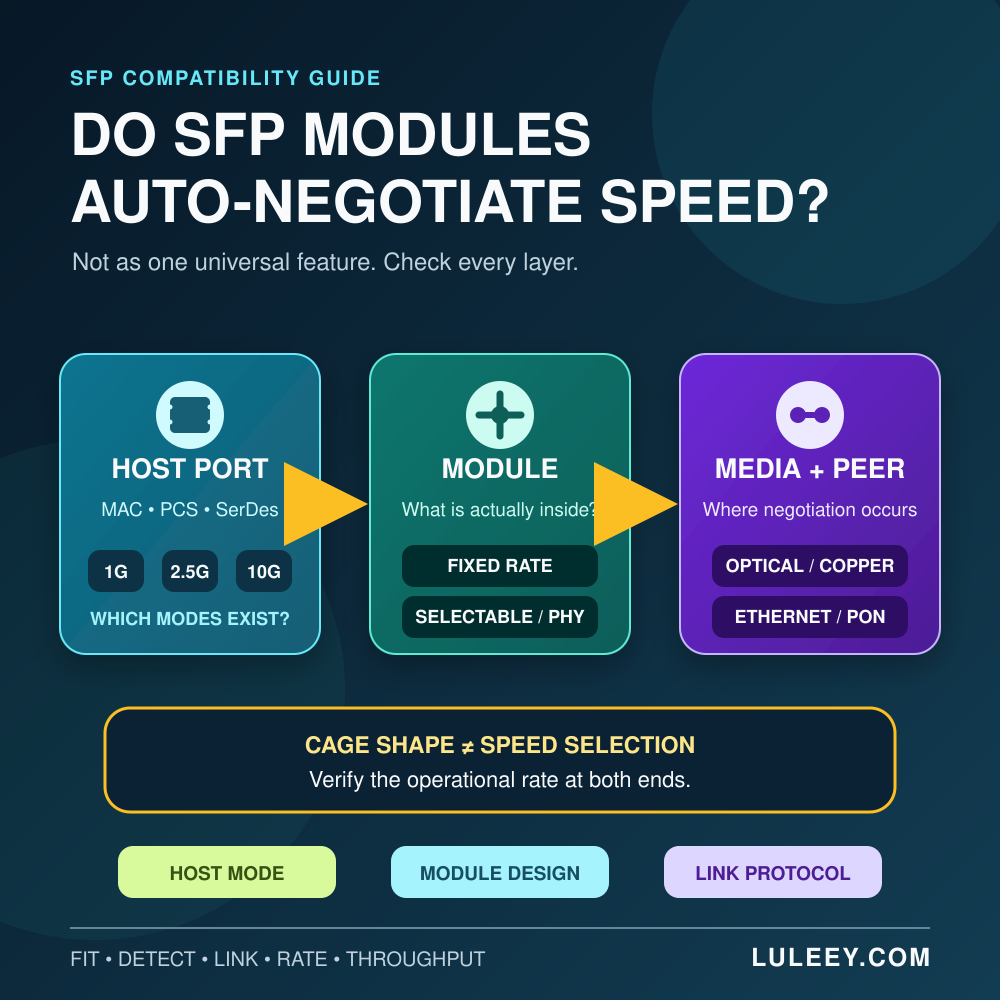
Physical fit and module detection prove only that the management path works. They do not prove a compatible 25G PCS or FEC mode. The related LuLeey guide, SFP Auto-Negotiation: Do Modules Select Speed?, explains that separation in more detail.
A Safe 25G FEC Mismatch Troubleshooting Workflow
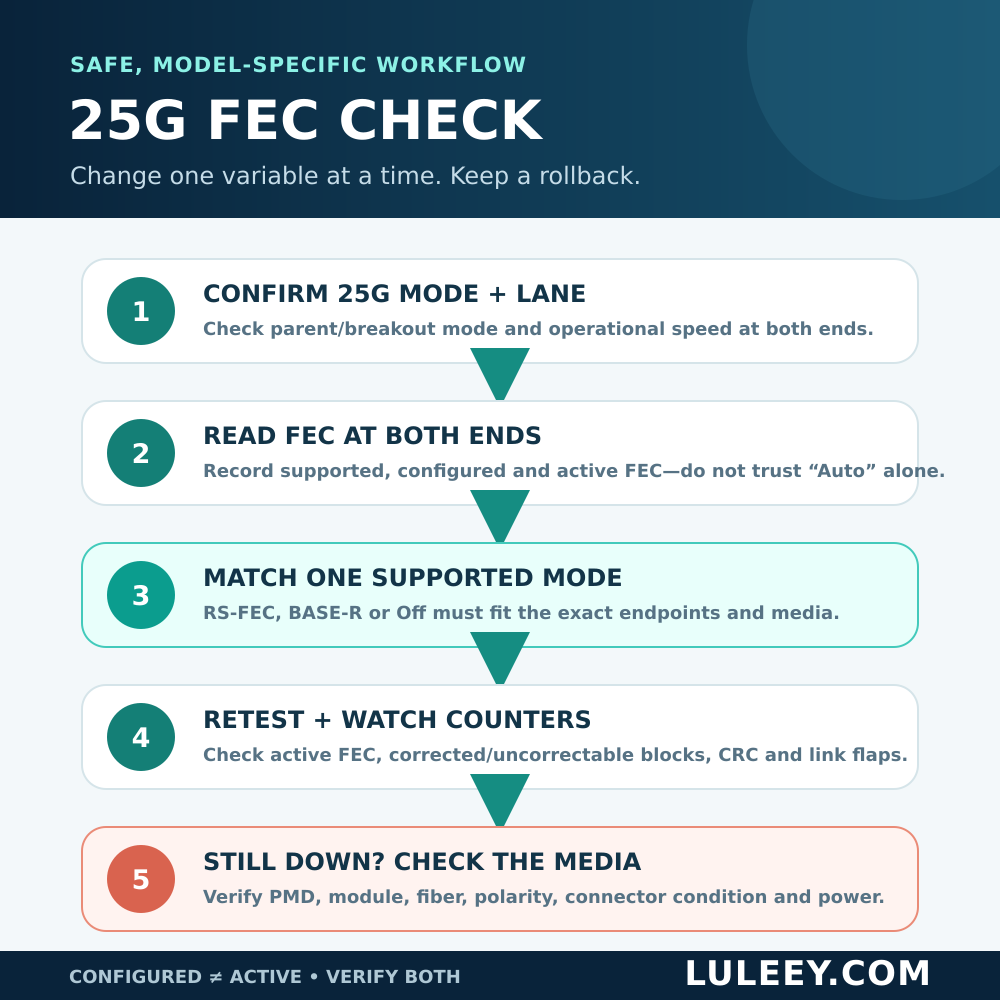
1. Confirm the real port mode
Verify that both endpoints show one 25GbE lane, not 10G, 100G parent mode or an unexpected breakout child. Record configured and operational speed separately.
2. Read FEC at both ends
Capture the supported, configured and active FEC state before changing anything. On a supported Linux driver, a read-only check is:
ethtool --show-fec <interface>Other systems use different commands and labels. Use the manual for the exact software release. If the link is down, examine supported and configured modes as well as any reported active state.
3. Identify what the media requires
Read the exact host and module or cable documentation. Do not apply a rule from a different reach or media type. A 25GBASE-SR optical link and a short engineered DAC link need not use the same FEC policy.
An official Intel Ethernet adapter guide lists Auto, Clause 108 RS-FEC, Clause 74 BASE-R and No FEC as distinct choices, and limits available configurations according to the attached media.
4. Match both endpoints in a maintenance window
Choose one FEC mode that the exact endpoints and media all support. Apply the documented setting to both ends, one controlled variable at a time, and keep the original configuration for rollback. Changing FEC can interrupt traffic.
Do not change speed, lane mode, auto-negotiation and FEC together. If the link comes up after four simultaneous changes, you have not proved the cause.
5. Verify the operational result
Check that both ends report Link Up, 25Gb/s and the same active FEC. Then run an authorized traffic test and record counter changes over a fixed interval:
- Corrected FEC blocks or symbols
- Uncorrectable FEC blocks
- FCS/CRC errors
- Link resets or flaps
Corrected counts show that FEC is doing work; they are not a universal pass/fail limit. Compare their rate with the platform’s acceptance limits and a known-good baseline. Uncorrectable errors or continuing CRC growth require more investigation.
6. Continue with the physical link if needed
Matching FEC does not clean a connector, cross duplex polarity or repair a weak lane. If the link is still down or errors rise, verify the PMD, wavelength, fiber type, polarity, connector condition, transmit/receive specifications and measured power at both ends.
Also rule out receiver overload. LuLeey’s SFP receiver overload guide explains how to compare measured power with the receiver’s sensitivity and overload limits.
A Simple Example
A server NIC and switch both detect their 25G SFP28 optics, but the link remains down. The switch is configured for BASE-R FEC. The NIC supports BASE-R and RS-FEC but is forced to RS-FEC.
The engineer records both configurations, confirms 25G mode and checks that the exact optical application is supported. During an approved maintenance window, both endpoints are set to the documented common mode. The link comes up at 25Gb/s. A traffic test then shows no uncorrectable FEC blocks or CRC growth.
That result supports an FEC mismatch diagnosis. If the link had remained down, the next step would be the optical path—not random changes to four more settings.
Practical Next Step
Build a one-page compatibility record before buying or troubleshooting: host and port, firmware/driver, speed and lane mode, exact module or cable, peer, supported FEC modes, configured FEC and active FEC.
You can browse LuLeey’s optical transceiver range, but do not select a 25G part from the form factor alone. Send LuLeey the full endpoint and media record so the module, host mode and FEC requirements can be checked as one link.
 SFP/SFP+ (1G/2.5G/5G/10G)
 SFP-T (1G/2.5G/10G)
 AOC Cable 10G/25G/40G/100G
 DAC Cable 10G/25G/40G/100G
 QSFP28 QSFP+ SFP28 100G/40G/25G
 Copper to Fiber Media Converters
 Fiber Media Converter PCBA Board
 OEO Fiber Media Converters
 Serial to Fiber Media Converters
 Video to Fiber Media Converters
 1000M GPON/EPON ONU
 10G EPON ONU/XG-PON/XGS-PON
 2.5G GPON/XPON STICK SFP ONU
 POE GPON/EPON ONU
 Wireless GPON/EPON ONT
 EPON OLT
 GPON OLT
 SFP PON Module
 Industrial Switches
 Managed Switches
 POE Switches
 Unmanaged Switches
 MTP/MPO Fiber Cables
 Fiber Optic Cassettes
 Fiber Optic Loopback
 Optic Cables and Fiber Pigtails
 Optical Splitters and Splitter Box
 Fiber Flange Connectors
 Optical Adapters
 Optical Attenuator
 Quick Connector and Connector Panel
 CATV Amplifier
 CATV Optical Receiver
 Visual Fault Locator
 OTDR
OTDR Optical Power Meter
 Fiber Optic Identifier
 Fiber Optic Cleaners
 Fiber Cleavers & Fiber Strippers
 Copper Tools


