Customs duties are the responsibility of customers, but standard logistics support DDP to most countries, duty-free such as US, DE, UK, CA, FR, IT, PL, AT, JP…

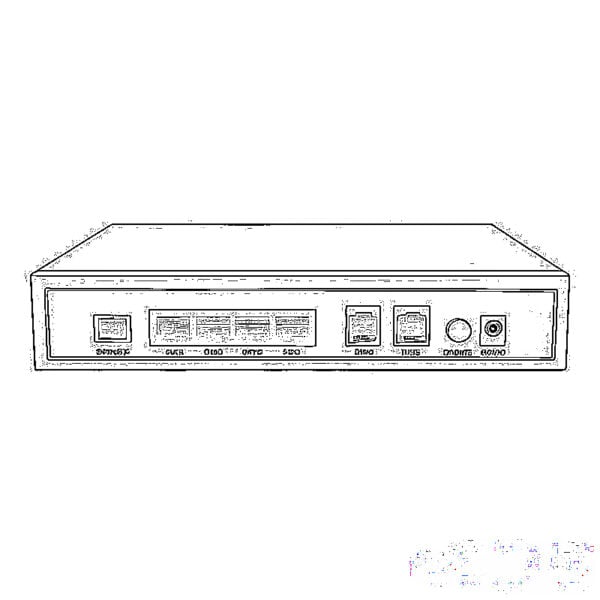
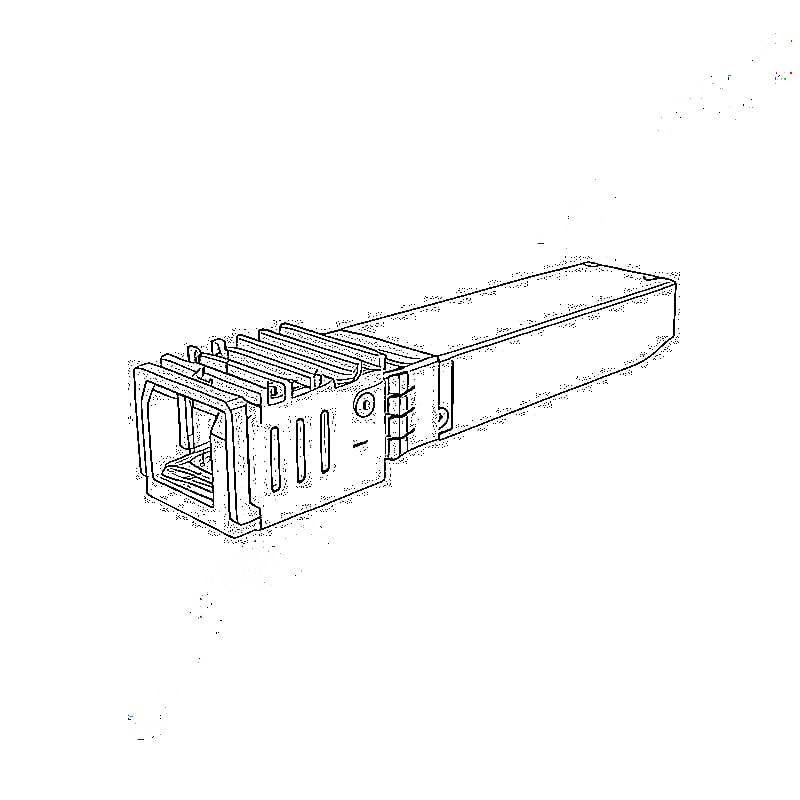
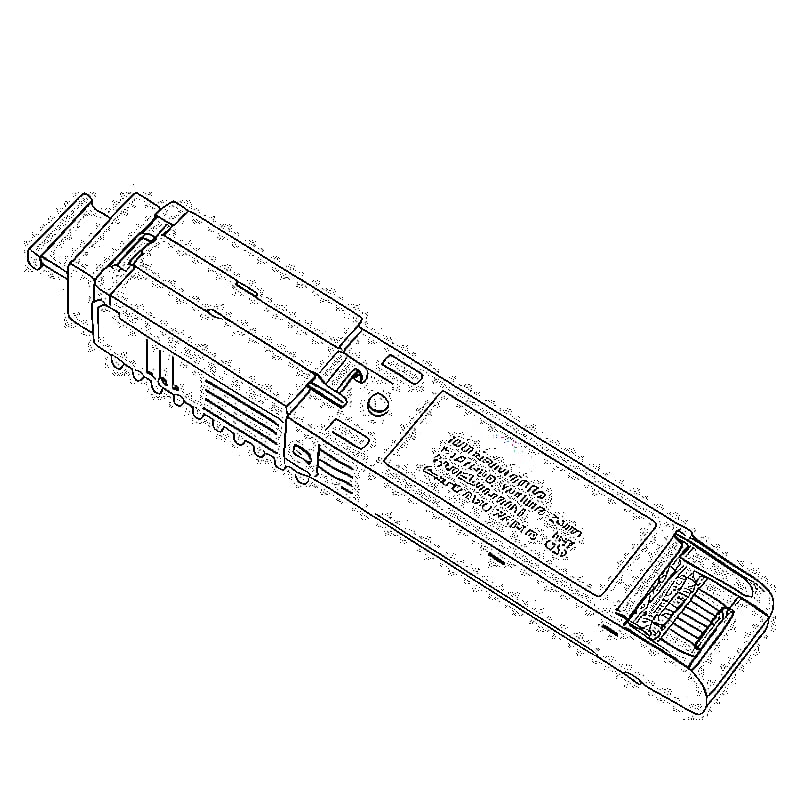
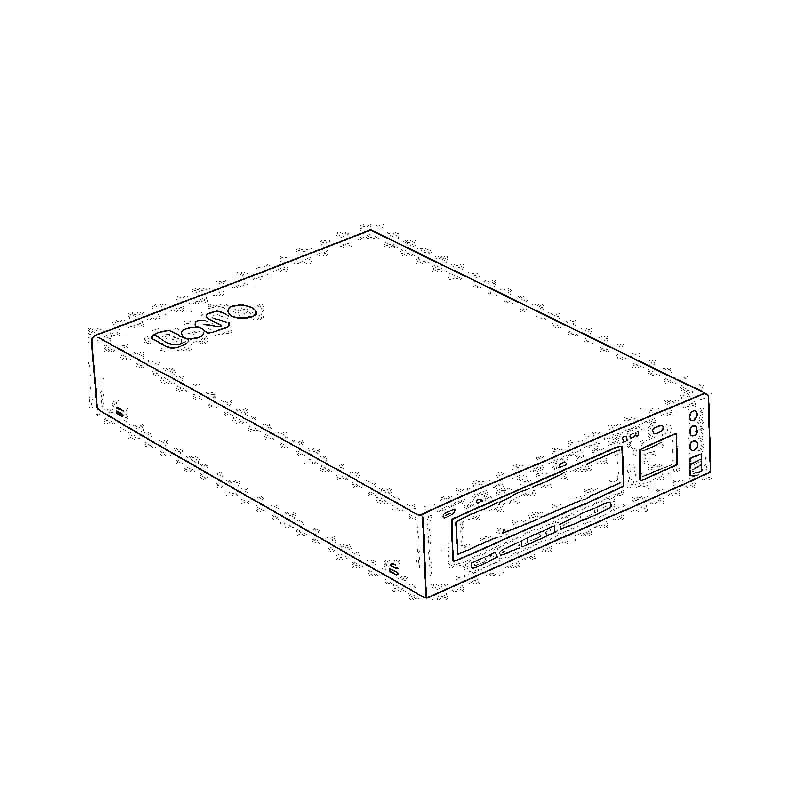
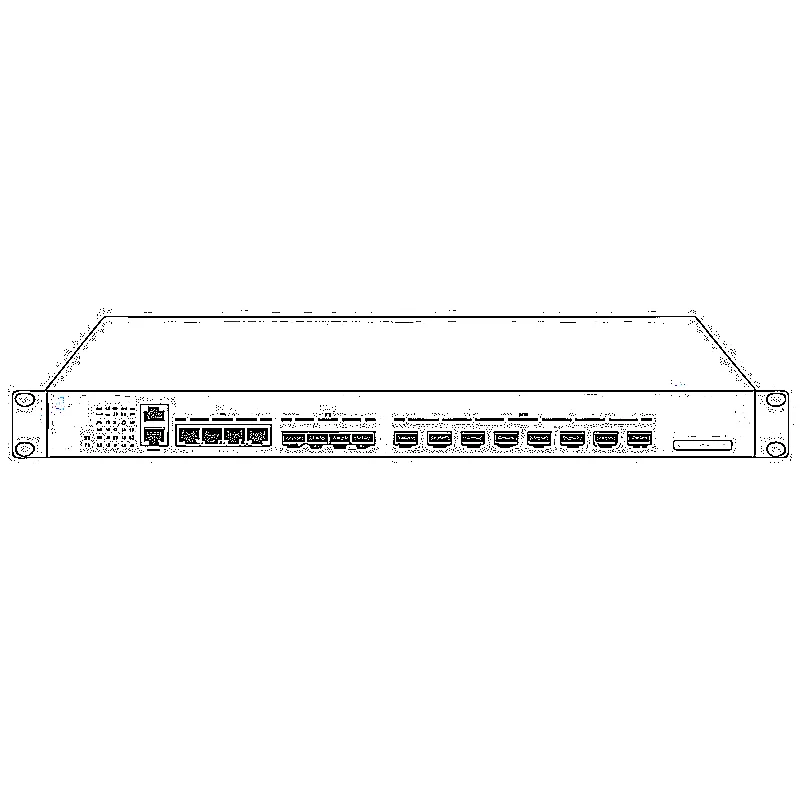
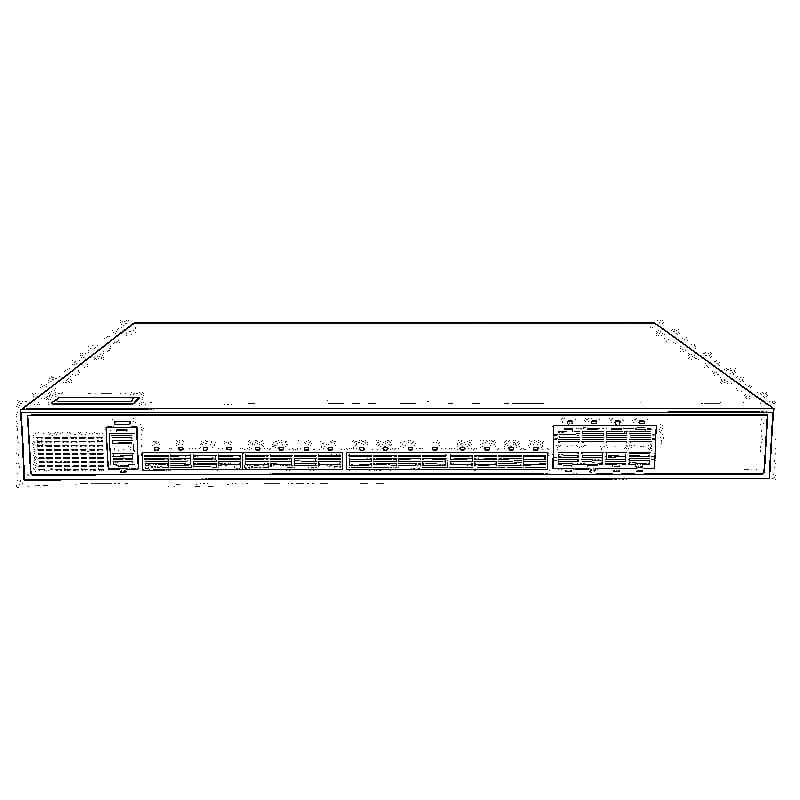
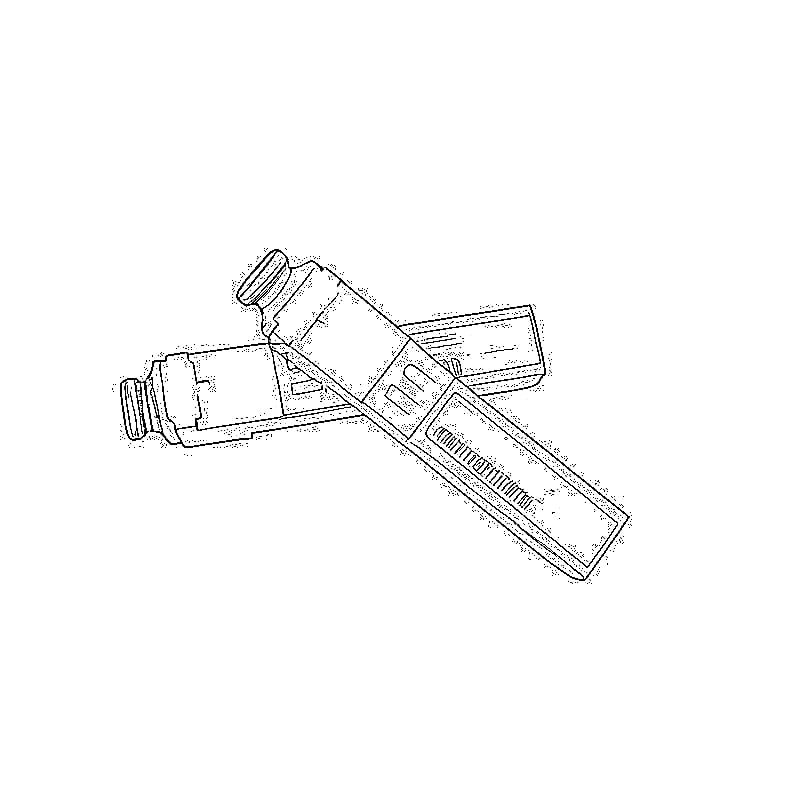
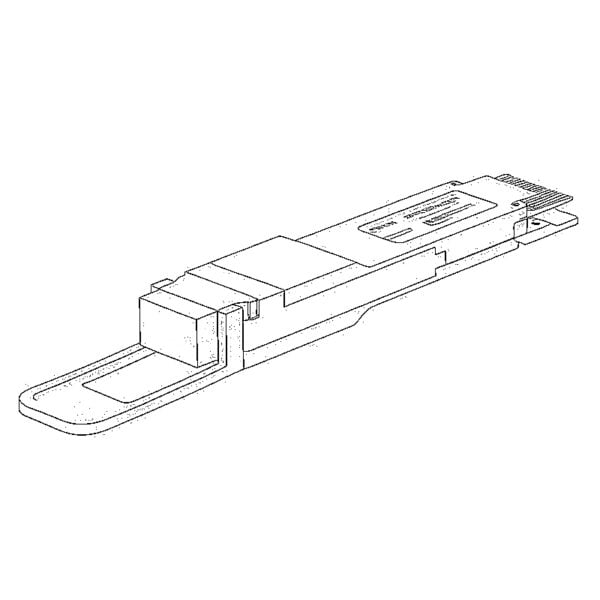
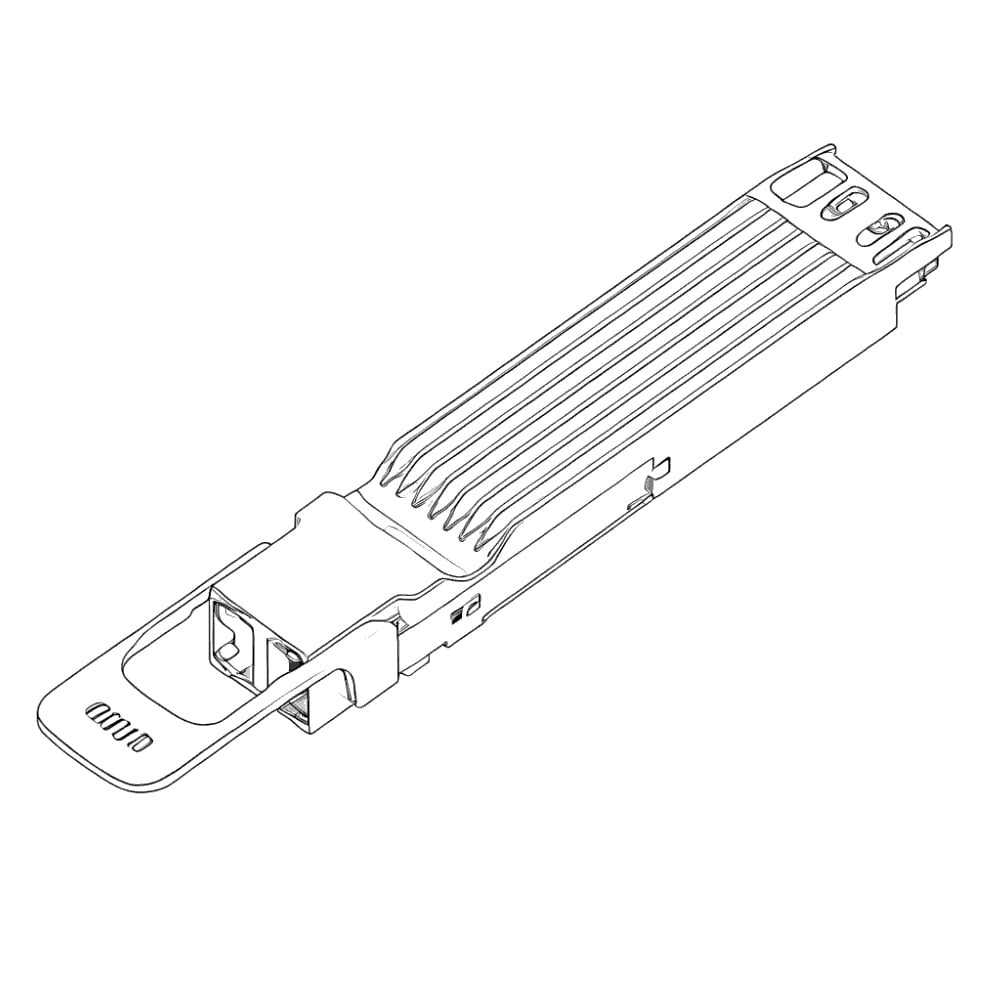
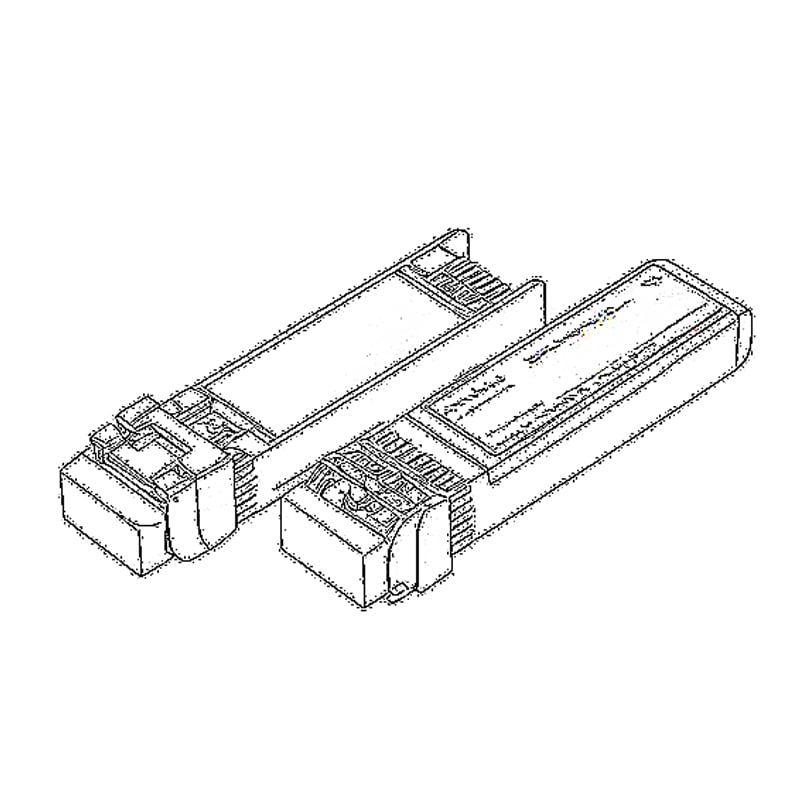
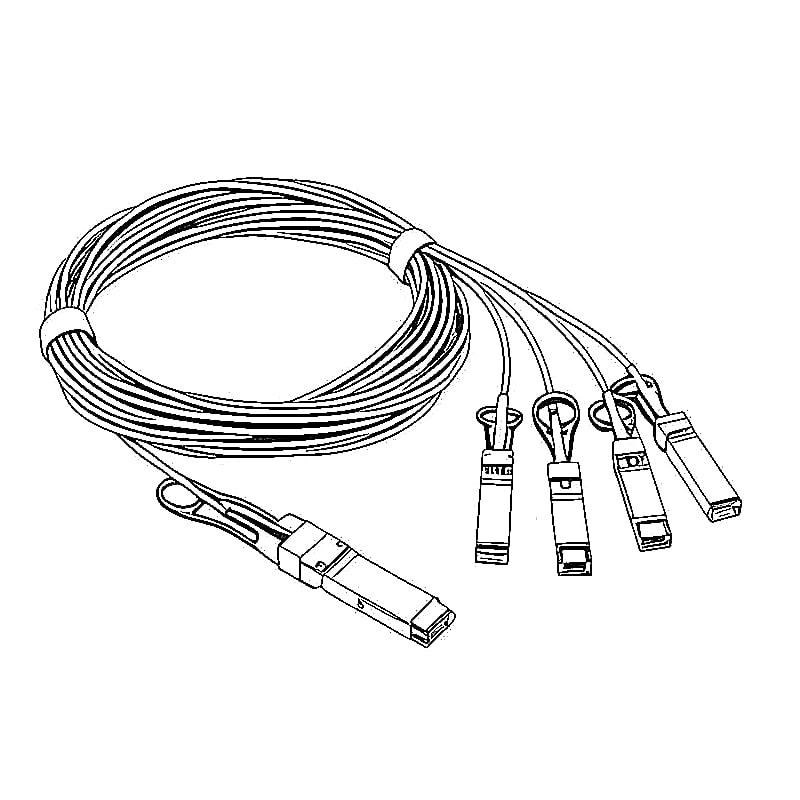
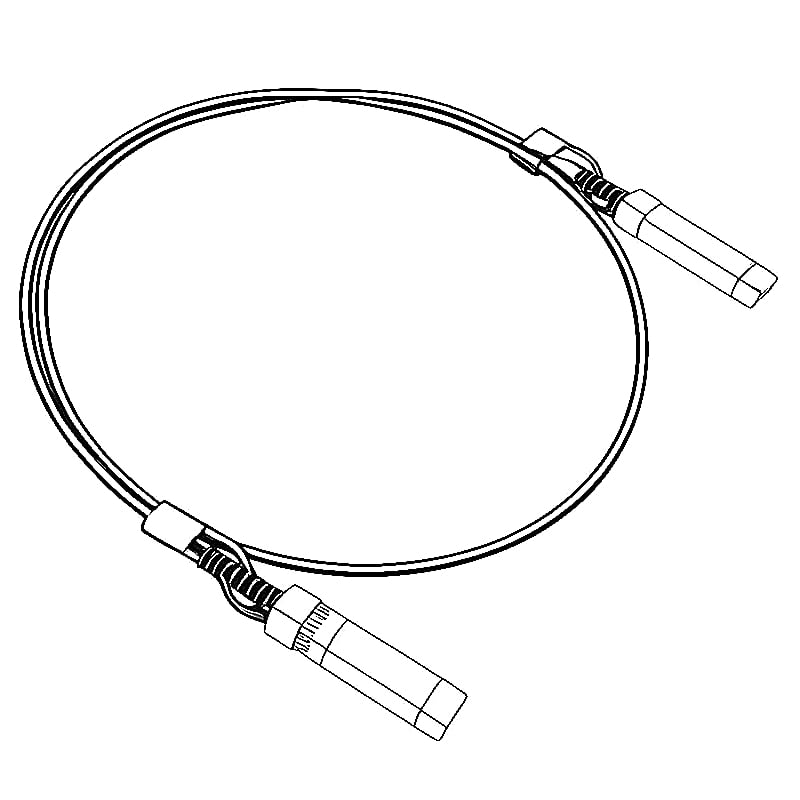
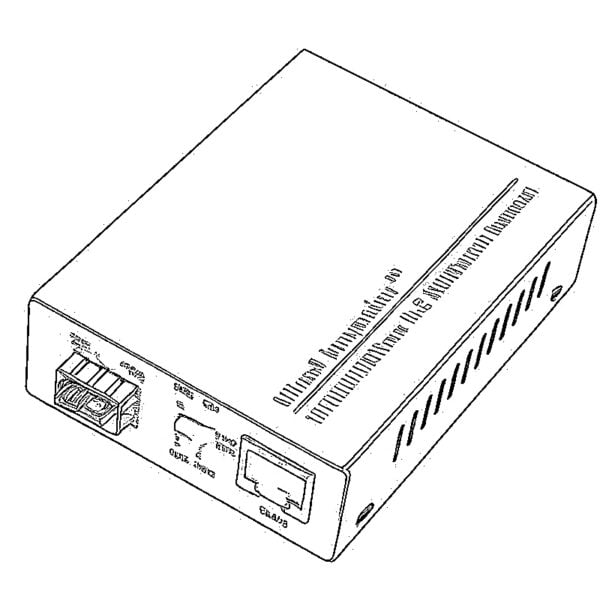
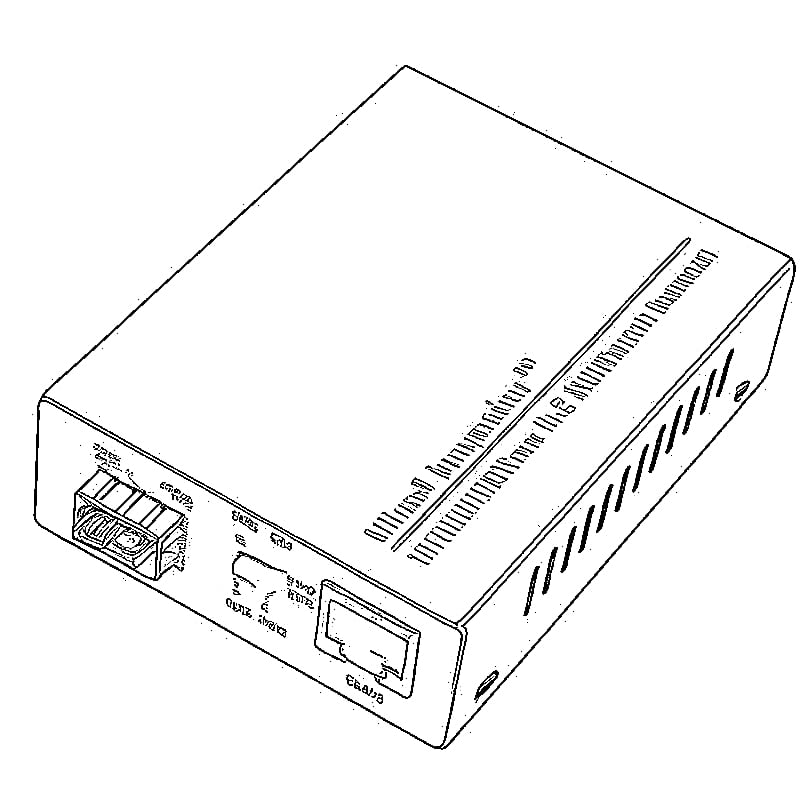

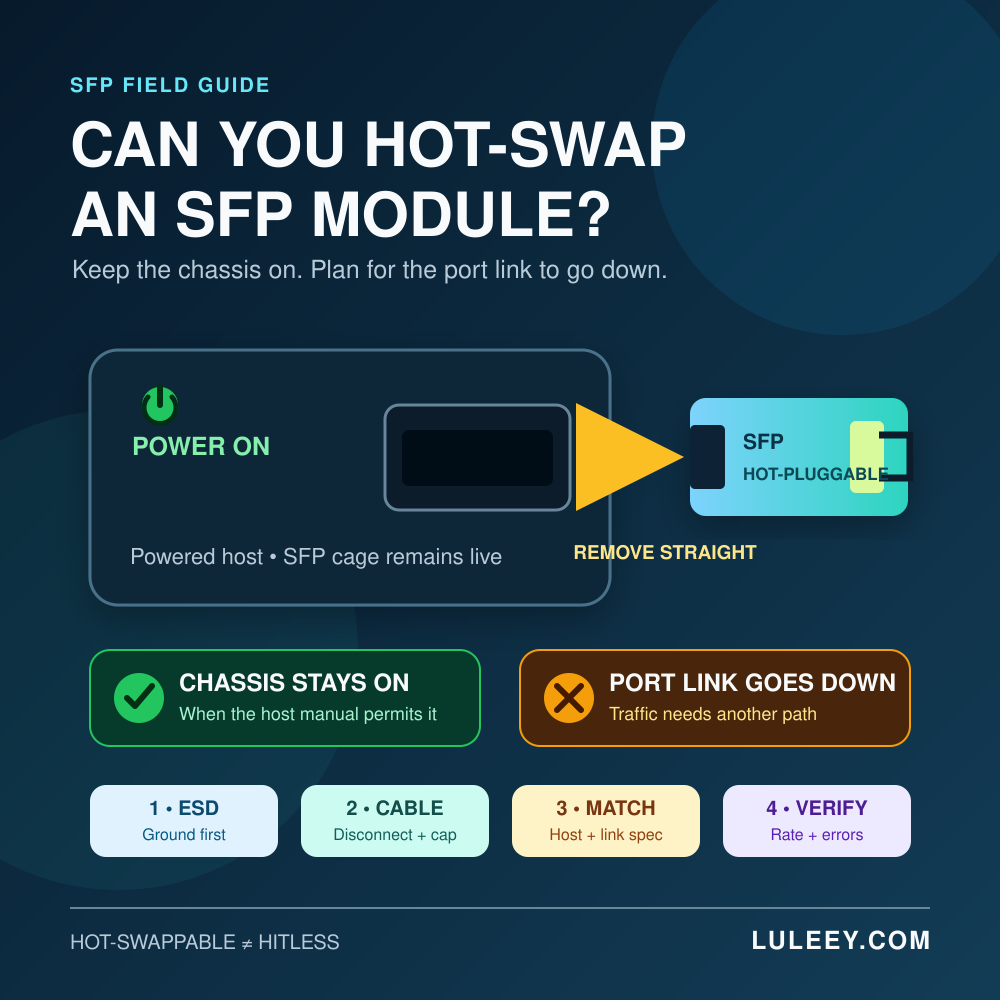
Yes—SFP and SFP+ transceivers are generally designed to be hot-pluggable. You can normally hot-swap an SFP module while the switch, router, NIC or media converter stays powered. That does not make the change hitless: removing the module drops the physical link on that port, and traffic survives only if a separate redundant path takes over.
The word “generally” matters. Always check the manual for the exact host model, port, hardware revision and software release. A platform may require you to disable the port, wait for a documented interval or reinitialize the interface after insertion.
This guide covers ordinary Ethernet SFP-family optics and copper modules. A DAC or AOC is a complete cable assembly, while a PON ONU Stick contains an ONU and adds registration, authentication and service configuration. Those cases need extra checks described below.
Can You Hot-Swap an SFP Module? The Short Answer
| Question | Practical answer |
|---|---|
| Must the chassis be powered off? | Usually no, if the host manual permits hot insertion and removal. |
| Will the port keep carrying traffic? | No. Removing the module takes that physical link down. |
| Can the fiber stay connected during removal? | Disconnect it first for a normal pluggable optical module. |
| Can any same-size replacement be inserted? | No. Physical fit is only one compatibility check. |
| Is repeated removal harmless? | No. Unnecessary insertion cycles can wear the latch, contacts and connectors. |
The current SNIA SFF-8419 specification describes the SFP+ module as hot-pluggable. It also defines a contact sequence in which ground, power and signal contacts mate in order, plus power behavior for hot insertion. That electrical design is why a supported module can be inserted without shutting down the chassis.
It does not promise uninterrupted traffic, automatic rate selection or compatibility with every module. Those depend on the host hardware, firmware, driver, configuration, module coding and link partner.
What “Hot-Swappable” Does—and Does Not—Mean
Think of Hot Swapping as a power statement, not a service-availability statement.
- Chassis state: the host can normally remain powered.
- Port state: the affected port loses its module and physical link.
- Traffic state: sessions may fail unless a separate link, LAG, routing protocol or other redundancy has already converged.
- Module state: the replacement still has to be detected, accepted, configured and linked.
- Application state: Link Up does not prove clean traffic or expected throughput.
For example, removing one member of a correctly designed two-link bundle may leave traffic running on the other member. Removing the only WAN optic from a router will interrupt the WAN even though the router itself stays on.
If the host cannot detect a newly inserted module, use a staged process rather than repeatedly reseating it. LuLeey’s SFP module not detected guide separates module presence, identity reading, host acceptance and physical-link faults.
Before Removing the Module
1. Confirm the operational impact
Identify the exact port and the services using it. Check whether redundancy is healthy and whether maintenance approval is required. Do not assume that a second cable is an active failover path; verify its state and forwarding role.
If possible, record a baseline:
- Host model, port number, hardware revision, firmware and driver
- Configured and operational speed, auto-negotiation and FEC
- Module vendor, part number, revision and serial number
- Link state, alarms and recent error counters
- DDM/DOM temperature, voltage, TX power, RX power and bias current, when supported
- VLAN, LAG, routing or other service configuration tied to the port
The baseline tells you whether the replacement restored the original condition. LuLeey’s DDM/DOM guide explains what the common diagnostic fields do—and why not every host can display them.
2. Read the exact host procedure
Do not use a generic rule when the platform manual gives a specific one. Check whether the host requires:
- An administrative shutdown before removal
- A particular release mechanism or extraction tool
- A delay before inserting another module
- A port rescan, reset or service restart
- Restrictions on module power, temperature or supported coding
Administratively disabling the port is a useful operational control where supported: it makes the planned outage explicit and may reduce avoidable events or alarms. It is not a universal electrical requirement, and its exact effect on transmitter power is platform-specific.
3. Prepare the replacement and protection materials
Have the correct replacement, clean dust caps, an antistatic bag or container, an approved ESD wrist strap and the proper fiber inspection/cleaning tools ready. Do not leave an open module or connector exposed while looking for supplies.
Compare the complete part number and specification. “SFP,” “SFP+” or “SFP28” alone is not enough.
How to Hot-Swap an SFP Module Safely
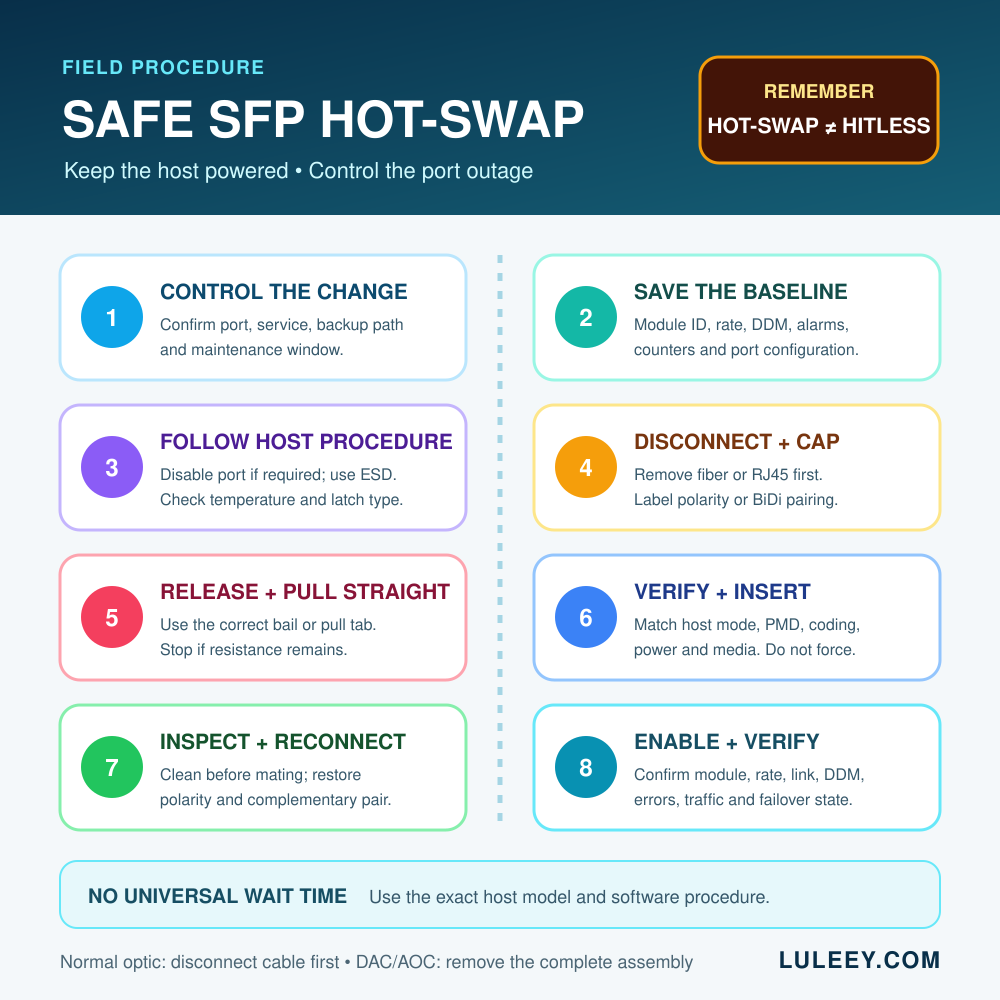
Step 1: Move traffic or enter the maintenance window
Confirm the backup path has taken traffic if redundancy is available. Otherwise, notify affected users and begin the approved outage. Save the baseline before changing anything.
Step 2: Disable the port if the host procedure calls for it
Use only the documented interface control for that platform. Do not copy a command from another device family. Confirm that you selected the intended port.
Step 3: Use ESD Protection and check the temperature
Attach an approved ESD wrist strap to the proper grounding point and handle the module by its body or pull tab, not its electrical contacts. Some modules—especially higher-power copper transceivers—can be uncomfortably hot. Follow the host’s warning and allow the module to cool if necessary.
If heat was part of the incident, compare the reported temperature with the exact module’s specified range. The SFP module temperature guide explains why “hot to the touch” is not the same as an over-temperature alarm.
Step 4: Disconnect and protect the cable
For a normal optical SFP:
- Label the cable or its TX/RX orientation if there is any chance of confusion.
- Release the connector by its housing—never pull on the fiber jacket.
- Remove the cable before releasing the module latch.
- Immediately cap the cable and the module’s optical receptacle.
Do not look into the fiber or transceiver port. Optical communication systems can use invisible infrared light. Treat a fiber as active until it has been verified safe with an appropriate instrument and procedure.
For a copper RJ45 SFP, release and remove the copper cable first. For a BiDi link, label the local and remote module/wavelength pairing before disconnecting it.
Step 5: Release the correct latch and pull straight out
SFP-family modules use several latch styles, including a bail clasp, pull tab or sliding sleeve. Use the method shown for the exact module and host. Do not pry the cage, twist the module or use the fiber cable as a handle.
Pull the released module straight out with steady pressure. If it does not move, stop and recheck the latch position and host instructions. Forcing it can damage the module, cage or adjacent ports.
Place the removed module in an antistatic container. Avoid unnecessary insertions and removals because the mechanical and electrical interfaces have a finite service life.
Step 6: Verify the replacement before insertion
| Layer | What to verify |
|---|---|
| Mechanical | Correct form factor, orientation and latch style |
| Host electrical | Supported SerDes/PHY mode and lane rate |
| Software | Firmware, driver, module policy and EEPROM coding support |
| Link application | Matching Ethernet PMD, speed, negotiation and FEC requirements |
| Optical path | Fiber type, connector and polish, wavelength or BiDi pair, reach and power window |
| Environment | Module power class, host power limit, airflow and temperature range |
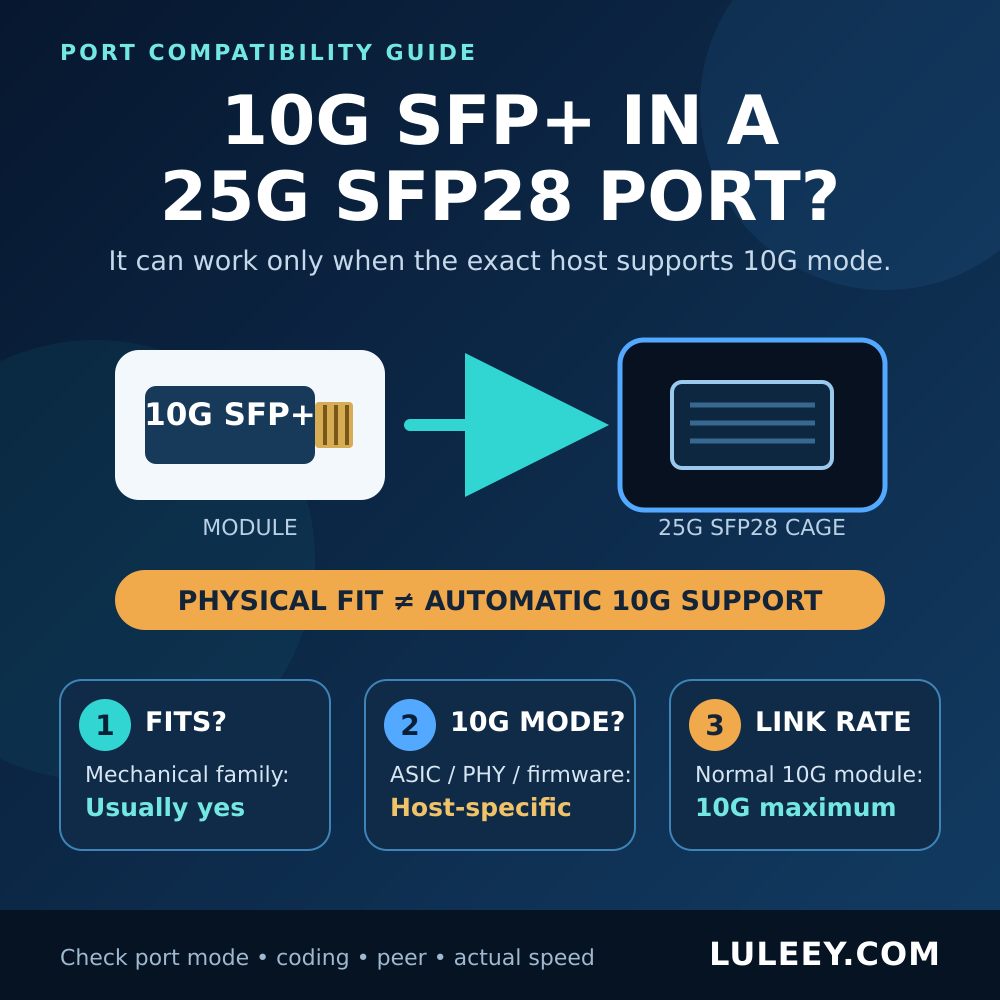
The shared SFP-family shape does not make a port universally multi-rate. LuLeey’s guide to using a 10G SFP+ in a 25G SFP28 port shows why physical fit, host SerDes mode, actual operating rate and usable throughput must be checked separately.
Step 7: Insert and latch the module
Remove the module’s electrical-interface protection only when ready. Hold the module in the documented orientation, slide it straight into the cage and use gentle pressure until it is fully seated and latched. Never force a module that does not slide smoothly.
Follow any host-specific waiting interval. There is no universal number of seconds that applies to every switch, NIC, media converter or module.
Step 8: Inspect, clean and reconnect
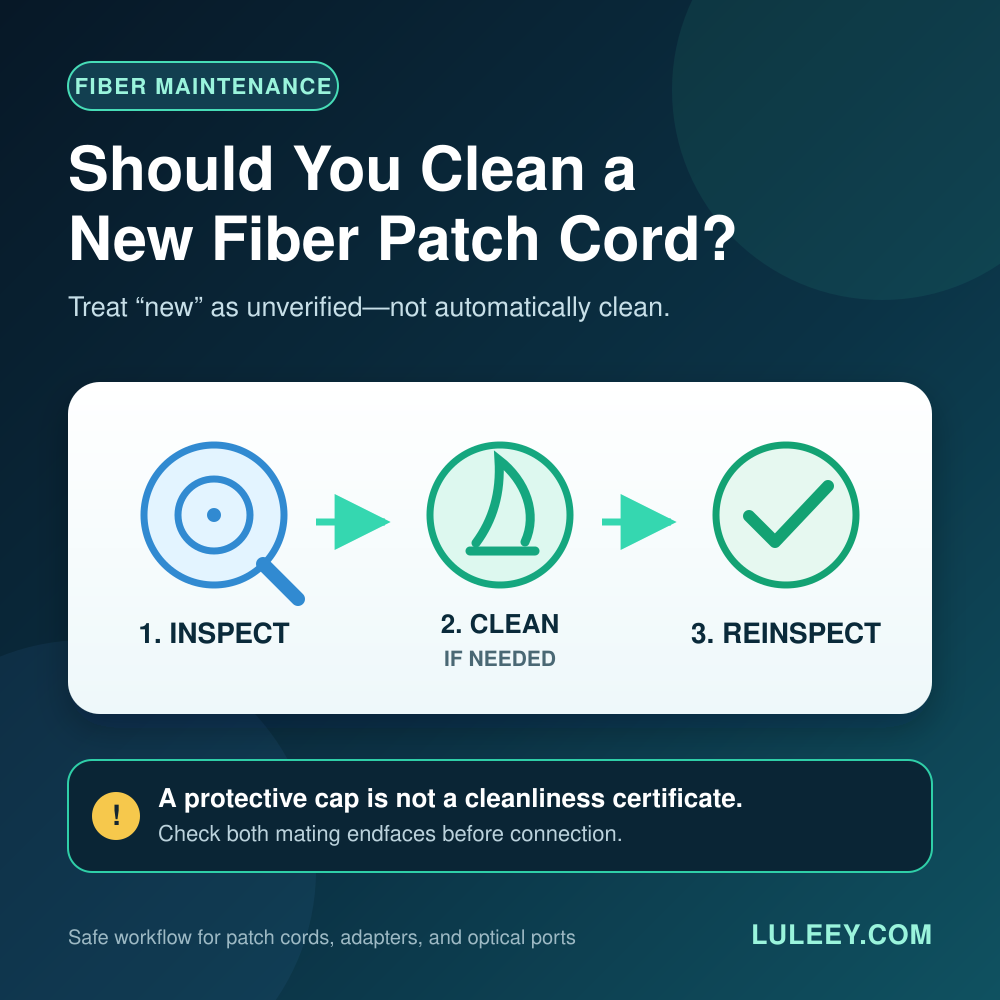
A dust cap reduces exposure; it does not certify a clean end face. Inspect and clean the fiber connector and module interface with the approved method before mating them. Reconnect the correct fibers and restore duplex polarity or the complementary BiDi pair.
Do not connect an optical cable until the module is fully latched. A connector already attached to the module can obstruct the release mechanism and put stress on the fiber, connector and host interface.
Step 9: Enable and verify the port
Re-enable the port if it was disabled. Then verify the whole path, not just the LED:
- The host detects the module and reads the expected part number.
- The host accepts the module without a power, temperature or policy alarm.
- Both ends report the expected operational speed, negotiation state and FEC.
- Link remains stable through the host’s normal initialization period.
- DDM values, where available, are within the exact module’s specified limits.
- CRC/FCS, PCS, FEC and other relevant error counters do not rise unexpectedly.
- Expected VLANs, routes or services pass traffic.
- A controlled traffic test reaches a plausible throughput for the negotiated rate and system overhead.
Clear counters only if your change process allows it, or record before-and-after deltas. A green LED can coexist with errors, wrong VLANs or a lower-than-expected rate.
Common Hot-Swap Mistakes
Removing the module with fiber still attached
This can stress the cable and connector, damage the interface or prevent the latch from opening correctly. Disconnect and cap the cable first for a normal pluggable optic.
Assuming hot-swappable means hitless
The chassis can stay on, but the affected port goes down. Confirm redundancy before removal; do not discover failover behavior during an unplanned outage.
Replacing by shell label alone
An SFP+ module that physically fits may still use the wrong host rate, optical PMD, wavelength, fiber, power level or coding. Verify the exact module and host combination.
Treating a dust cap as proof of cleanliness
Caps can carry contamination. Inspect, clean and inspect again according to the site procedure before making the final connection.
Using a universal waiting time
Some hosts need almost no operator-visible delay; others document a wait, rescan or port reset. Follow the exact platform manual instead of inventing a fixed interval.
Repeatedly reseating a module
Repeated insertion is not a diagnostic plan. If one careful reseat does not change the state, separate presence, identity, host acceptance, link and traffic checks.
Special Cases
DAC and AOC cable assemblies
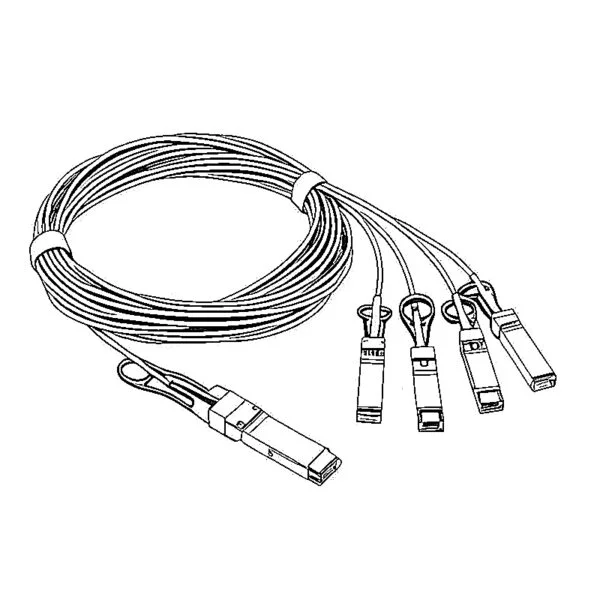
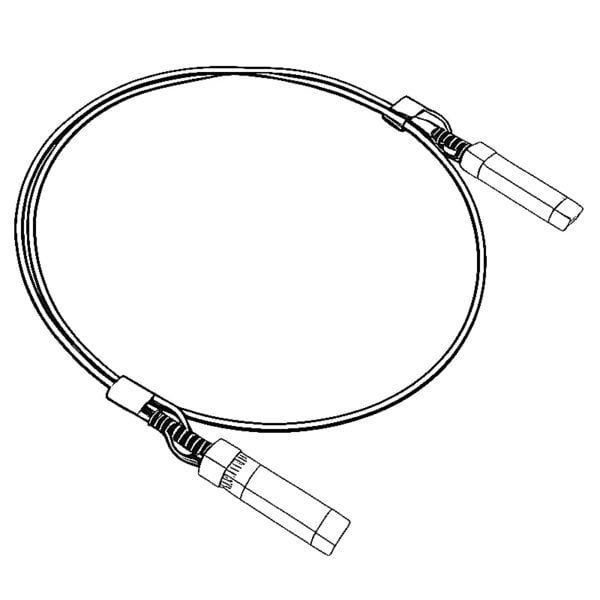
A DAC or AOC has captive SFP-family ends, so there is no separate cable to unplug from the module. Disable the affected link as required, use ESD precautions and remove the complete assembly by its documented pull mechanism. Confirm that both endpoints support that exact cable type, rate, length and coding.
Copper RJ45 modules
Disconnect the RJ45 cable before removing the module. Copper SFP/SFP+ modules can draw more power and run hotter than many optical modules, so check the host’s allowed power, port-density and cooling rules.
Do not judge compatibility from the RJ45 link speed alone; the host-side SerDes mode and copper-side negotiation are separate.
2.5G PON ONU Sticks
An ONU Stick is not merely an Ethernet optic. Removing it removes power and interrupts the PON registration, authorization and service session. After reinsertion, verify the PON state as well as the host link.
A 2.5G PON ONU Stick may operate through a 1G or 10G SFP+ port at 1G only when both the Stick and host support a compatible 1G host mode. Some SFP+ ports may support 2.5G only with a suitable host chipset or PHY, firmware or driver, port setting, module coding and Stick host mode. Check physical fit, host SerDes mode, actual negotiated rate and usable throughput separately.
BiDi modules
Record which complementary wavelength belongs at each end before the change. Two modules with the same connector and rate are not necessarily a valid BiDi pair. After the swap, verify both directions of the optical power window.
When You Should Not Hot-Swap
Stop and resolve the condition first if:
- The exact host manual prohibits live removal
- The cage, latch, connector or module is visibly damaged
- The module is too hot to handle safely under the host guidance
- You cannot identify the live service or confirm a maintenance window
- Required ESD or optical-safety controls are unavailable
- The replacement’s host mode, power or link specification is unknown
- The module is stuck and would require force
Powering down may be slower, but it is the correct choice when the platform procedure or physical condition requires it.
A Practical Next Step
Before the change, write down four things: the exact host and port, the current module part number, the intended link specification, and the baseline status. Then use the host’s documented removal procedure and verify the same information afterward.



 SFP/SFP+ (1G/2.5G/5G/10G)
 SFP-T (1G/2.5G/10G)
 AOC Cable 10G/25G/40G/100G
 DAC Cable 10G/25G/40G/100G
 QSFP28 QSFP+ SFP28 100G/40G/25G
 Copper to Fiber Media Converters
 Fiber Media Converter PCBA Board
 OEO Fiber Media Converters
 Serial to Fiber Media Converters
 Video to Fiber Media Converters
 1000M GPON/EPON ONU
 10G EPON ONU/XG-PON/XGS-PON
 2.5G GPON/XPON STICK SFP ONU
 POE GPON/EPON ONU
 Wireless GPON/EPON ONT
 EPON OLT
 GPON OLT
 SFP PON Module
 Industrial Switches
 Managed Switches
 POE Switches
 Unmanaged Switches
 MTP/MPO Fiber Cables
 Fiber Optic Cassettes
 Fiber Optic Loopback
 Optic Cables and Fiber Pigtails
 Optical Splitters and Splitter Box
 Fiber Flange Connectors
 Optical Adapters
 Optical Attenuator
 Quick Connector and Connector Panel
 CATV Amplifier
 CATV Optical Receiver
 Visual Fault Locator
 OTDR
OTDR Optical Power Meter
 Fiber Optic Identifier
 Fiber Optic Cleaners
 Fiber Cleavers & Fiber Strippers
 Copper Tools


