Customs duties are the responsibility of customers, but standard logistics support DDP to most countries, duty-free such as US, DE, UK, CA, FR, IT, PL, AT, JP…

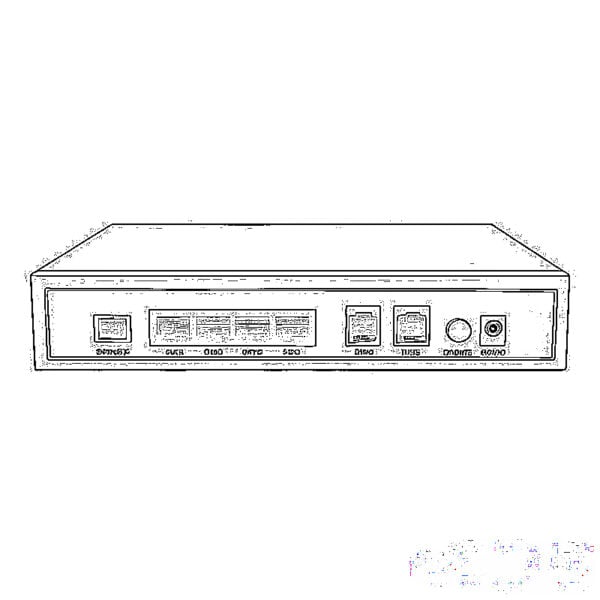
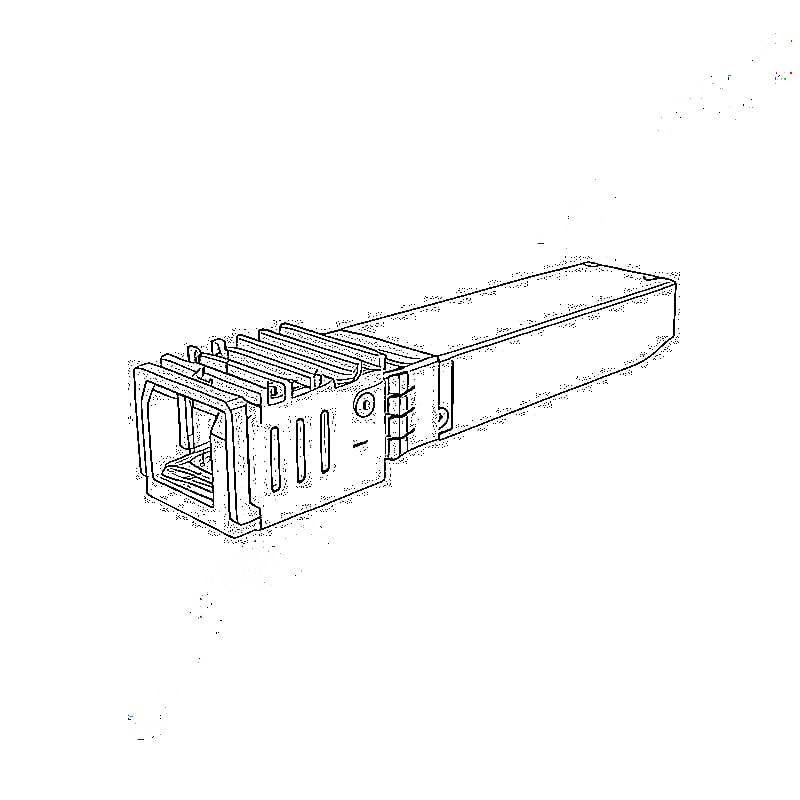
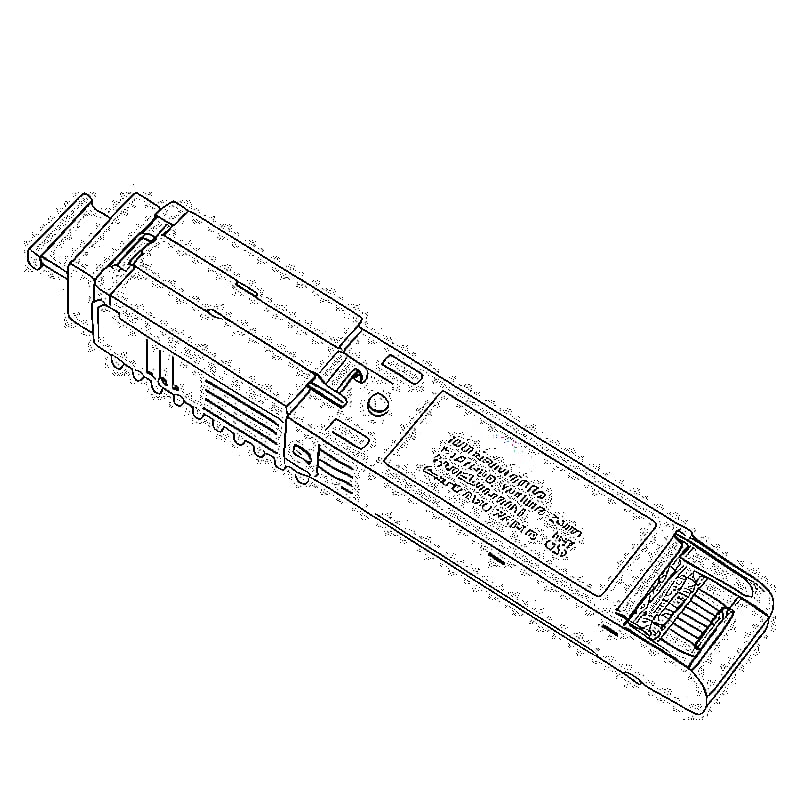
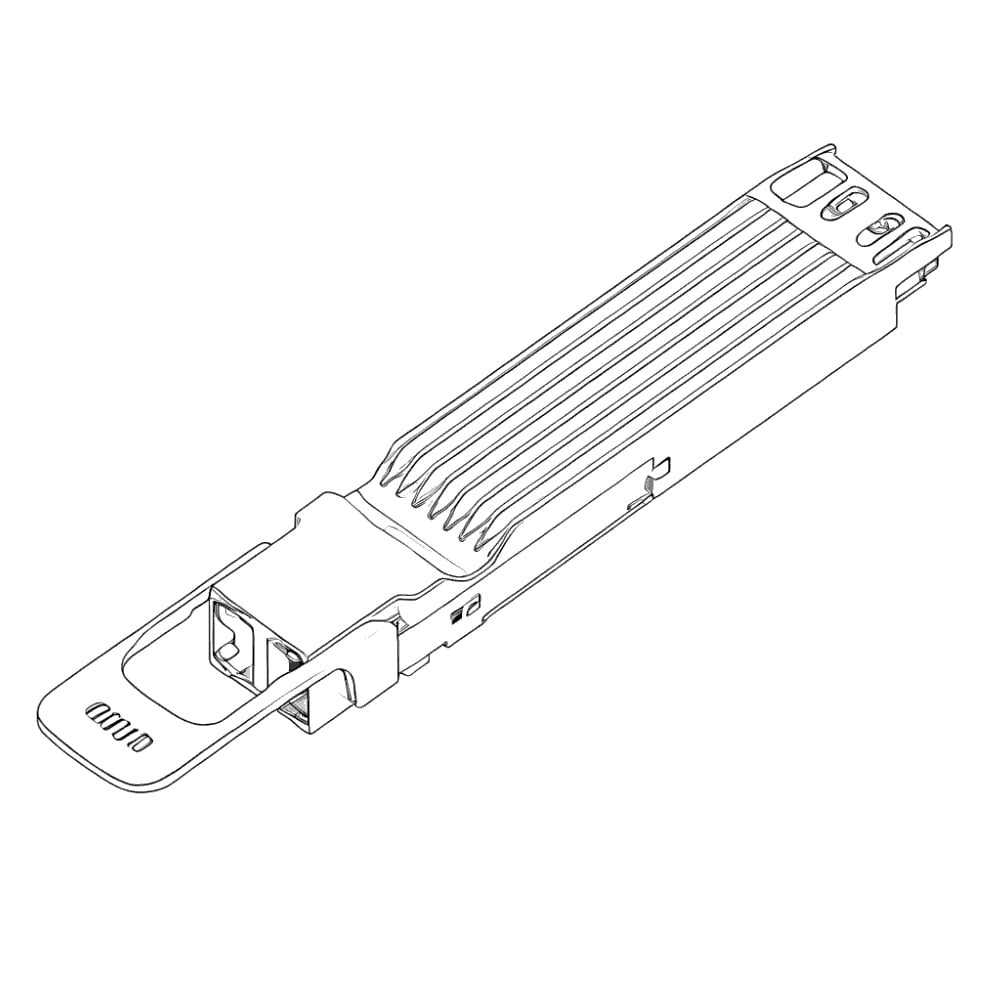
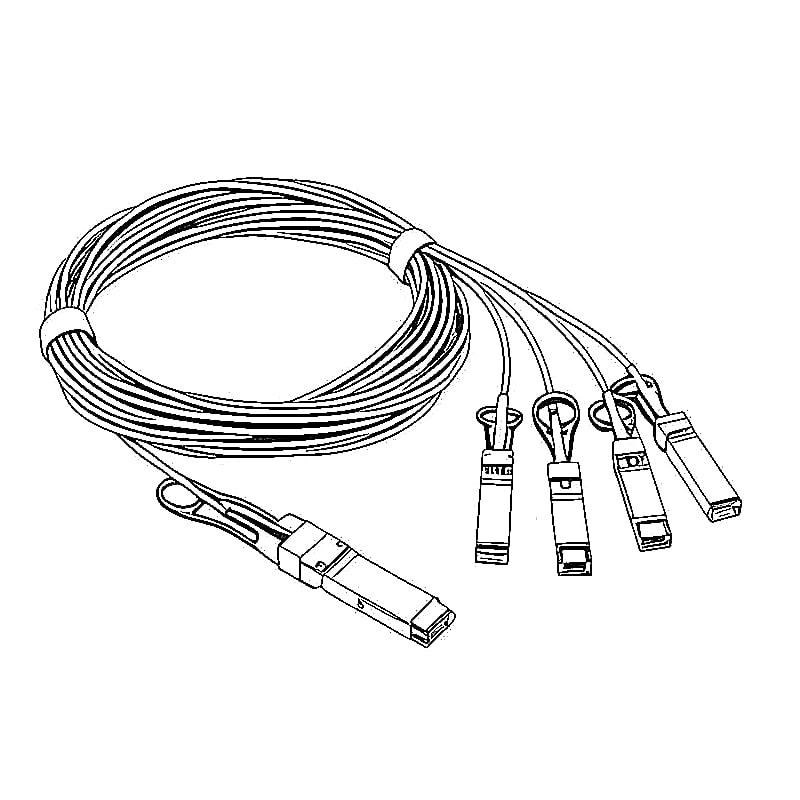
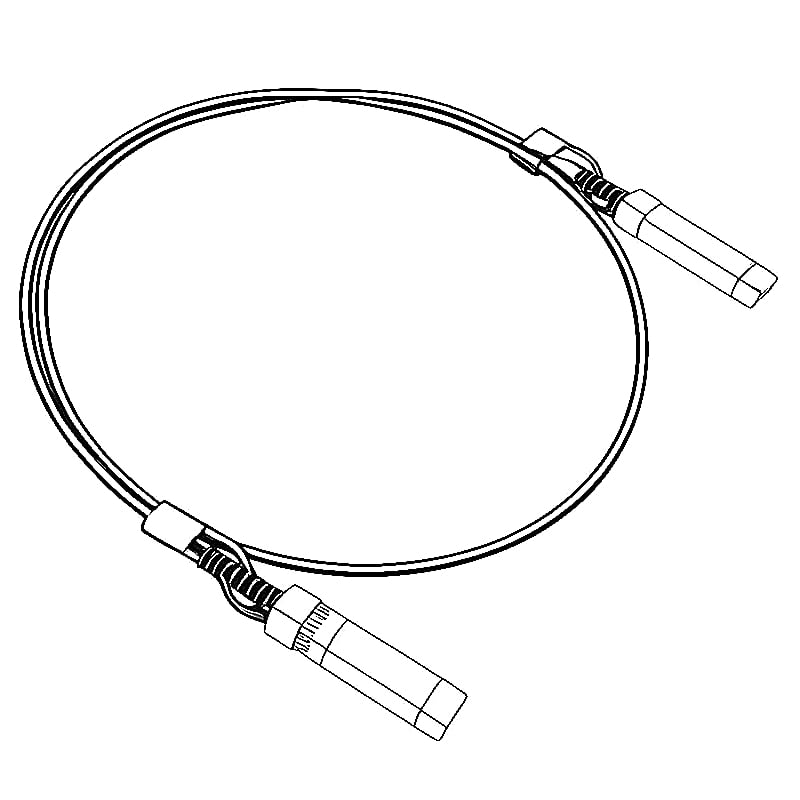
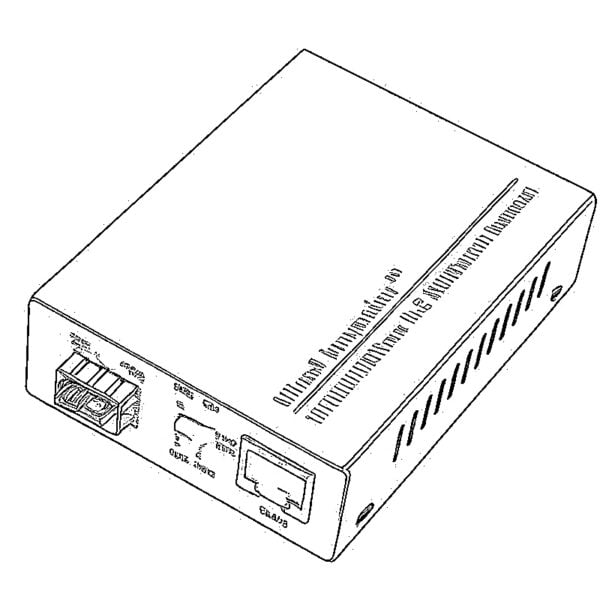
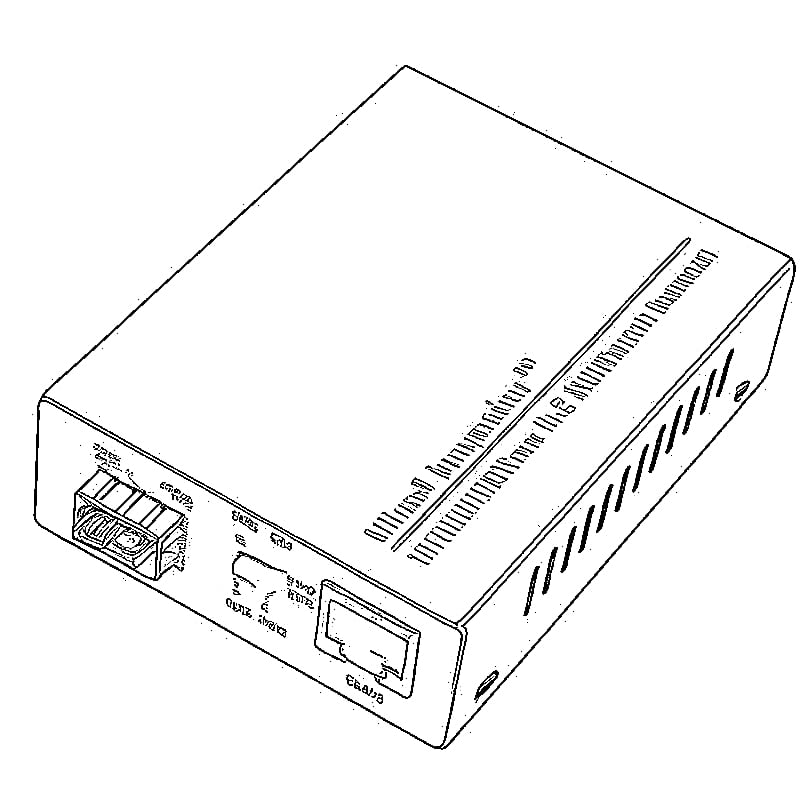


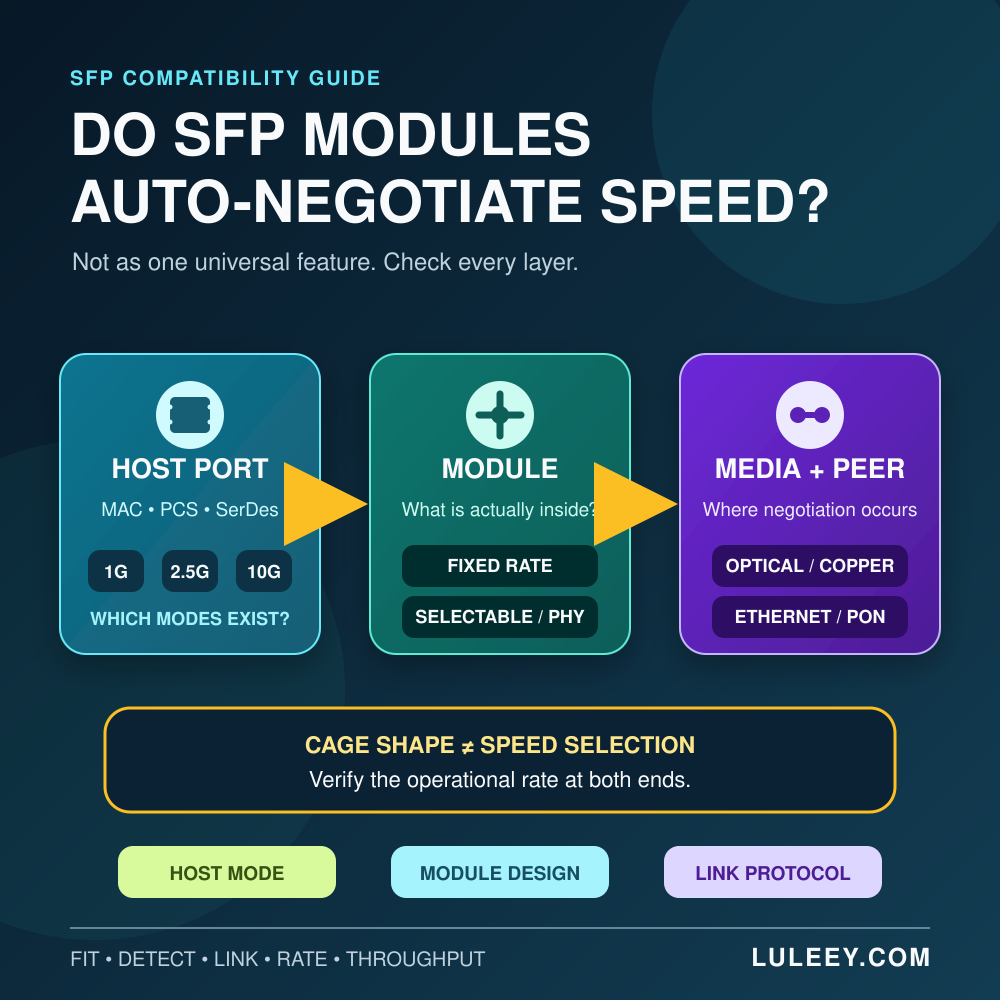
Usually, no—not by themselves. SFP Auto-Negotiation is not one universal feature built into every module. The working speed depends on the host port’s SerDes and PCS modes, the module’s actual design, the link protocol, the peer and sometimes a PHY inside the module. A module can fit, be detected and still fail to link at the speed you expected.
The safest rule is simple: do not ask only whether the cage is labeled SFP, SFP+ or SFP28. Check which electrical modes the exact host supports, which applications the exact module supports, how the rate is selected, what the remote end is using and what operational speed both ends finally report.
SFP Auto-Negotiation: The Short Answer
| Situation | Does speed select itself? | What actually decides the result? |
|---|---|---|
| Fixed-rate optical SFP or SFP+ | Usually no | Host mode, module application and matching optical peer |
| 1000BASE-X optical link | It may use Clause 37 in-band auto-negotiation | Both endpoints’ Clause 37 settings and advertised abilities |
| Multi-rate optical module | Only if the module and host implement a compatible selection method | Supported applications, RateSelect/software control and host configuration |
| RJ45 copper SFP/SFP+ | The copper side commonly negotiates, but the host side may be separate | Internal PHY, host interface mode, rate matching and copper peer |
| 2.5G PON ONU Stick | Model-specific; never infer it from the shell or “2.5G” label | Stick host mode, host PHY/SerDes, firmware, coding, PON state and port setting |
“Auto-negotiation is enabled” is therefore incomplete. You need to know where it is enabled: on the host-to-module interface, on the optical Ethernet link, on an RJ45 copper interface, or inside an active module.
Why SFP Auto-Negotiation Is Not One Thing
An SFP-family connection has several layers. Each layer answers a different question.
| Layer | Question it answers | What it does not prove |
|---|---|---|
| Cage and connector | Does the module physically fit? | That the host supports the module’s rate |
| Host MAC/PCS/SerDes | Which electrical interface modes can the port generate and receive? | That the module or peer supports the selected mode |
| Module electronics | Is the module fixed-rate, selectable, or built around a PHY that can adapt rates? | That every advertised silicon feature is enabled in the finished module |
| Media-side protocol | How do the two endpoints establish the link and exchange capabilities? | That the host side is running at the same rate |
| Operational link | What rate, duplex, pause and FEC state are actually active? | That application throughput equals the line rate |
The Linux kernel’s official phylink documentation illustrates this separation. A host can operate in a PHY-controlled mode, a fixed mode or an in-band mode. In-band signaling is used for interfaces such as 1000BASE-X and SGMII, while other configurations expect the MAC to use explicitly supplied settings. The mode is a host and firmware decision—not a property that can be inferred from the metal cage.
Physical fit is only the first gate
SFP, SFP+ and SFP28 belong to a closely related compact pluggable family. A module may slide into a cage and its management memory may be readable even when the high-speed data path is incompatible.
Detection proves that the host can see at least part of the module-presence or management interface. It does not prove:
- a compatible host SerDes rate;
- the correct PCS or encoding;
- a supported module application;
- matching FEC or negotiation settings;
- a compatible wavelength, PMD or link partner;
- the final operational speed or usable throughput.
This is why a “module present” message and a “link up” message are different checkpoints.
Where Does Speed Negotiation Actually Happen?
1. On a 1000BASE-X link
IEEE 802.3 Clause 37 defines auto-negotiation for 1000BASE-X. It uses in-band information to coordinate link abilities such as duplex and pause behavior. It is not a general mechanism that turns a 1G optic into a 10G optic or searches every rate from 1G through 25G.
Both ends still need compatible 1000BASE-X operation. IEEE’s published interpretation for Clause 37 warns that when one endpoint is manually configured and the other is not, the resulting configuration may be unpredictable. If one end forces settings, configure the peer as required by its documentation instead of assuming that it will detect the change.
2. Between the host and an ordinary optical module
Many optical transceivers are designed for a particular Ethernet application and line rate. The module converts the host electrical signal to light and back; it does not necessarily contain a multi-speed Ethernet PHY that negotiates with the host.
A common 10G-only optical SFP+ should not be expected to fall back to 1G merely because it fits in a lower-rate cage. Conversely, a 1G SFP can work in some SFP+ cages only when that exact host port supports a 1G SerDes/PCS mode and accepts the module.
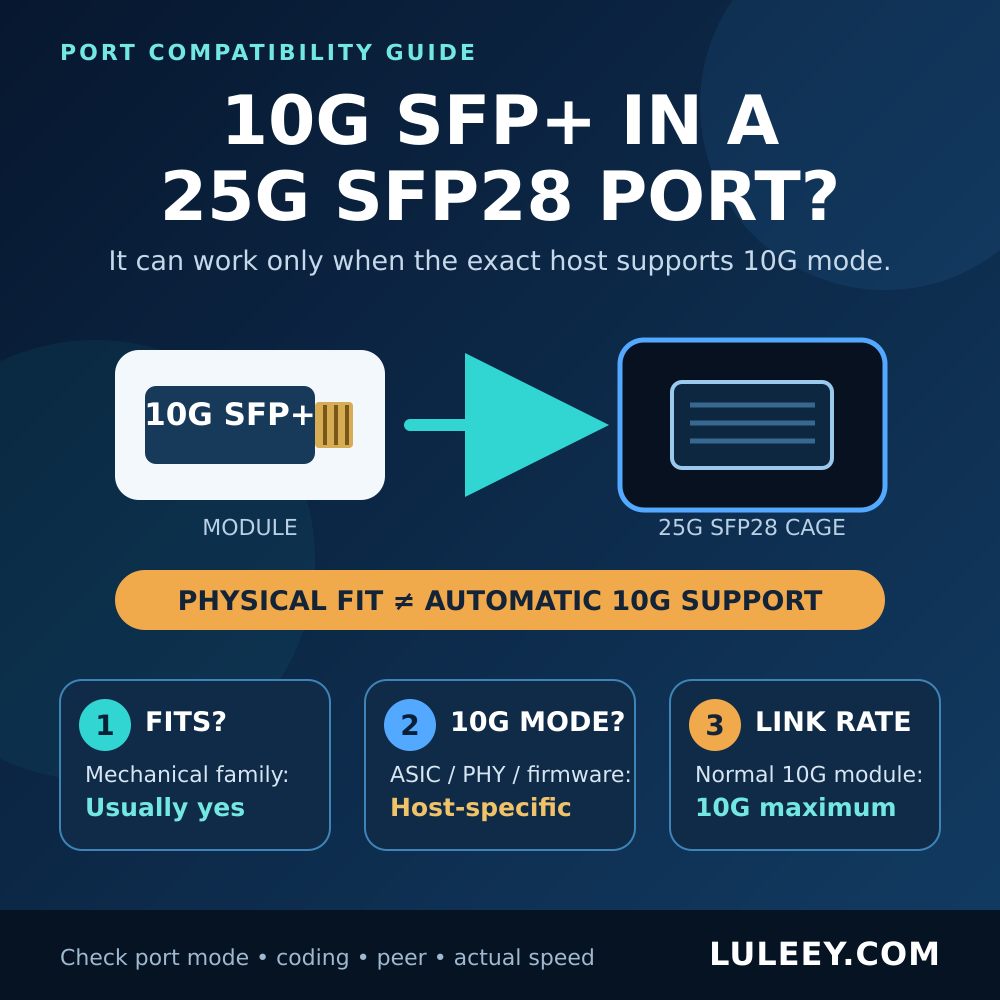
For the same reason, inserting a 10G SFP+ into a 25G SFP28 cage does not make it operate at 25G. It may run at 10G when the host explicitly supports a 10G mode. LuLeey’s guide to using a 10G SFP+ in a 25G SFP28 port explains that check in detail.
3. Inside a multi-rate module
Some modules support more than one rate or application. The host may select a mode through hardware pins, management registers or a documented application-selection method.
SNIA SFF-8079 defines optional RateSelect and ApplicationSelect behavior for compatible SFP modules. RateSelect was originally a two-state control commonly associated with receiver bandwidth; the specification also describes extended selection for multiple applications. This proves that selectable designs exist. It does not make every SFP multi-rate, and it is not the same as Ethernet link auto-negotiation with a remote peer.
The finished module’s datasheet must explicitly list the required application and explain how it is selected. A vague “multi-rate” label is not enough.
4. On the copper side of an RJ45 SFP/SFP+
An RJ45 transceiver can contain an Ethernet PHY. That creates two links:
- Host side: the module connects to the switch or NIC through an electrical SerDes interface.
- Copper side: the module connects to the remote RJ45 device over twisted-pair cable.
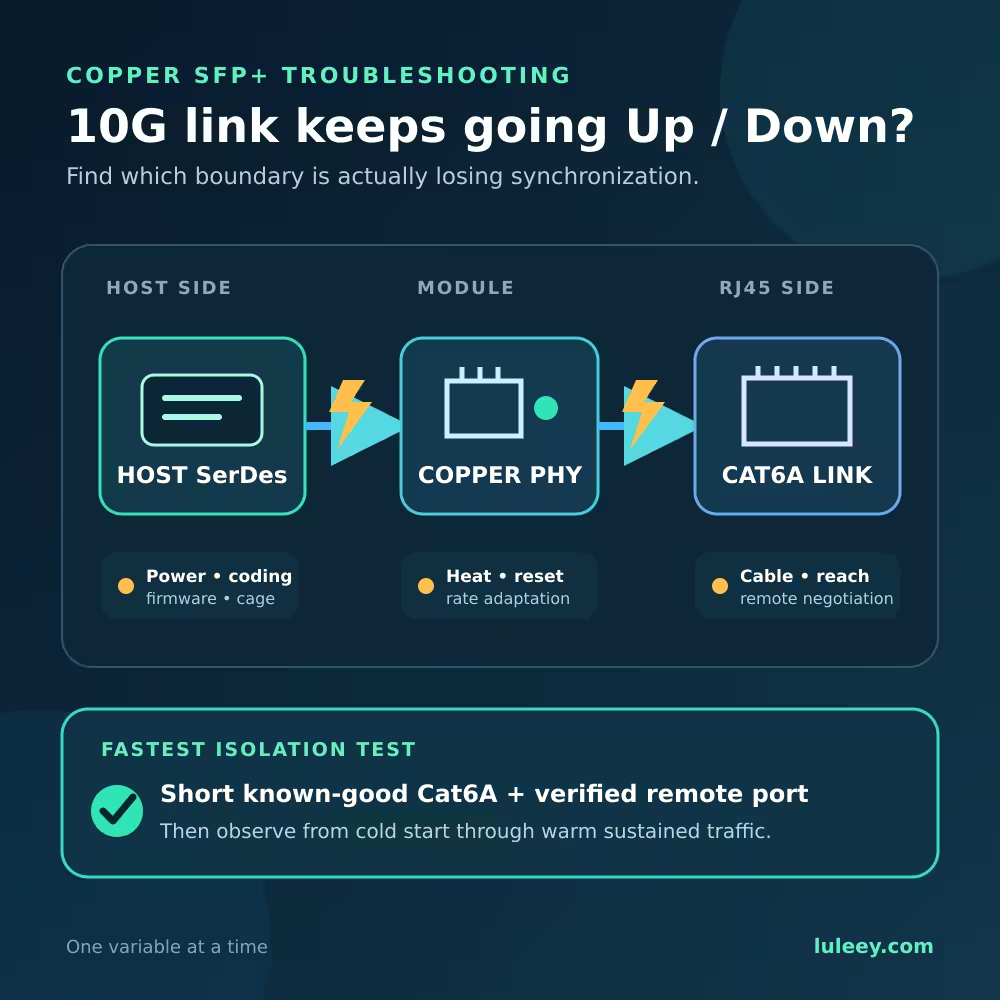
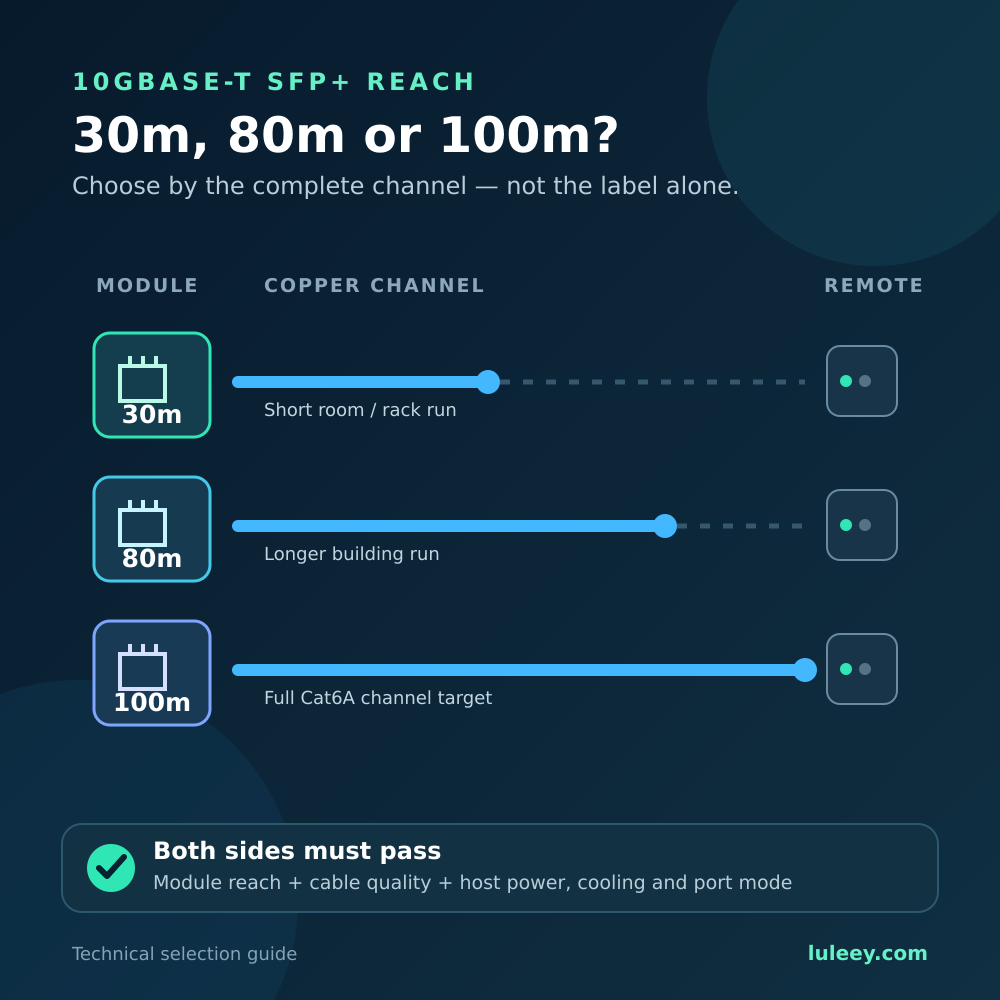
The copper side may auto-negotiate 1G, 2.5G, 5G or 10G when the finished module and peer support those rates. The host side may remain at 10G, switch to another supported mode, or fail—depending on the module architecture and the host.
For example, a rate-adapting module may maintain a 10G host-side link while its copper side negotiates 2.5G. The operating system can then report 10G on the host interface even though end-to-end throughput is limited by the 2.5G copper link and protocol overhead. LuLeey’s 10G SFP+ to 2.5G RJ45 guide covers this two-sided behavior.
Do not assume all Copper SFP+ modules work that way. Some require the host to change its SerDes rate; some support only a subset of copper rates; and some hosts reject the module because of coding, power or thermal limits.
Common SFP Speed Scenarios
| Combination | Possible result | What must be verified |
|---|---|---|
| 10G-only SFP+ in a 1G SFP port | Normally no link | A 1G host cannot create a 10G electrical mode |
| Explicit 1G/10G optical module in a 1G port | May link at 1G | Module’s 1G application, selection method, host acceptance and 1G peer |
| 1G SFP in a 10G SFP+ port | Often possible, never universal | Exact port’s 1G mode, firmware, coding and peer |
| 10G SFP+ in a 25G SFP28 port | May link at 10G | Exact port’s 10G mode, configuration, module support and 10G peer |
| Multi-rate RJ45 SFP+ in a 10G host | May negotiate a lower copper rate | Internal PHY, rate matching, flow control, power and host support |
| Two optics with the same wavelength but different rates | Normally no link | Matching Ethernet PMD and line rate matter as well as wavelength |
These are decision paths, not compatibility guarantees. Hardware revision, port group, firmware, driver and module coding can change the answer within one product family.
For a focused 1G/10G example, see LuLeey’s 10G SFP+ module in a 1G SFP port guide.
A Special Case: 2.5G PON ONU Sticks
A PON ONU Stick is not an ordinary Ethernet optic. Its optical side speaks a PON protocol and must register with an OLT, while its host side presents a particular electrical interface to the router, switch, NIC or media converter.
Do not decide compatibility from the words “2.5G,” “SFP” or “SFP+.” Check all of these:
- Exact ONU Stick model and hardware revision.
- Configured Stick host mode.
- Host chipset, PHY and supported SerDes modes.
- Host firmware, operating system and driver.
- Port speed and interface settings.
- Module coding and host acceptance.
- PON standard, OLT interoperability, registration and service configuration.
- Actual host-link rate and measured throughput.
A 2.5G PON ONU Stick may work in a 1G or 10G SFP+ port at 1G only when both the Stick and host support a compatible 1G host mode. Some SFP+ ports can support 2.5G with the right chipset or PHY, firmware or driver, port setting, module coding and Stick host mode. Neither outcome can be predicted from the cage name.
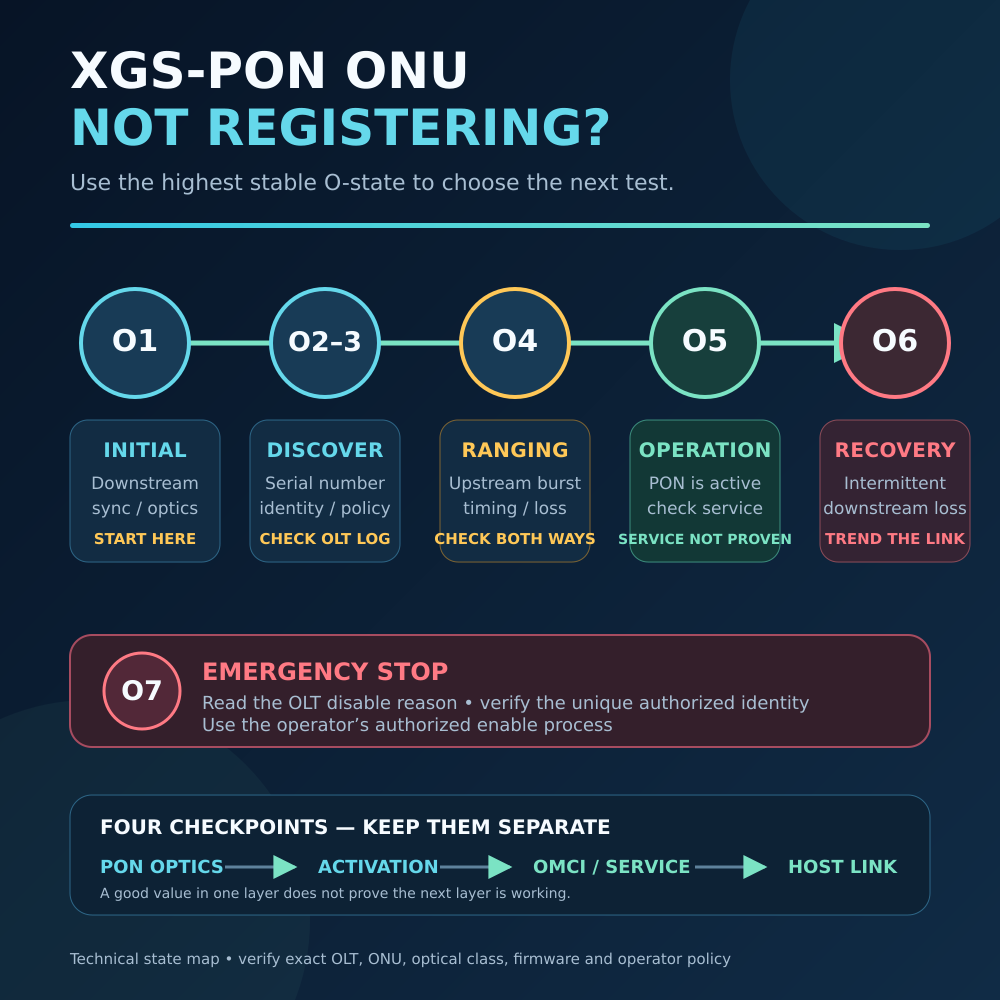
Even after the Ethernet-side link comes up, PON registration and Internet service remain separate tests.
How to Check Whether Your SFP Link Can Change Speed
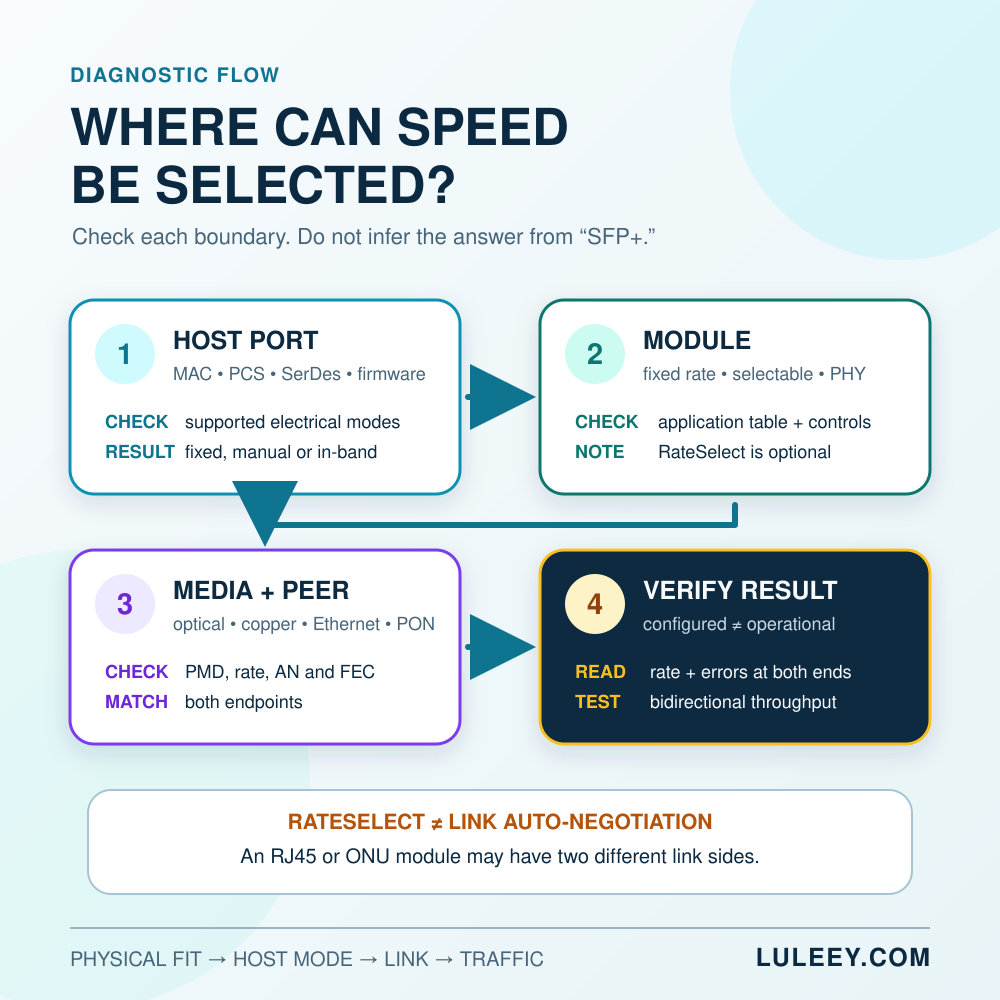
Step 1: Record exact identities
Write down the switch, router, NIC or media-converter model, hardware revision, port number, firmware and driver. Record the module vendor, full part number, hardware revision and coding. “10G switch” and “Multi-Rate SFP” are not precise enough.
Step 2: List the host port’s supported modes
Use the current manual or interface-status output for that exact port. Look for supported rates and interface modes, not just the maximum rate printed on the chassis.
Separate these questions:
- Which speeds can the MAC/PCS/SerDes run?
- Is the mode automatic, module-derived or manually selected?
- Are some rates available only on certain port groups or software releases?
- Does the port require a particular FEC or negotiation setting?
If the required SerDes mode is missing, stop. Re-encoding the module or forcing an undocumented command cannot add a missing hardware mode.
Step 3: Read the module’s application table
Confirm the exact Ethernet PMD or other application, nominal signaling rate, fiber or cable type, wavelength, reach and power requirements. If more than one rate is supported, find the documented selection method.
Do not interpret an EEPROM readout as proof that the module supports every rate the host can display.
Step 4: Separate the host side from the media side
For a simple optical transceiver, the host and optical line rates normally correspond to the module’s supported application. For an active copper module, media converter or ONU Stick, the two sides may use different protocols or rates.
Draw the path if necessary:
Host MAC/PCS/SerDes → module host interface → module PHY/logic → fiber or copper link → peer
Label the configured and operational rate at every boundary you can observe.
Step 5: Match the peer
Check the remote endpoint’s rate, PMD, negotiation setting and FEC. For optics, also match fiber type, connector polish, duplex polarity or BiDi wavelength pair, transmit power, receive sensitivity and overload limits.
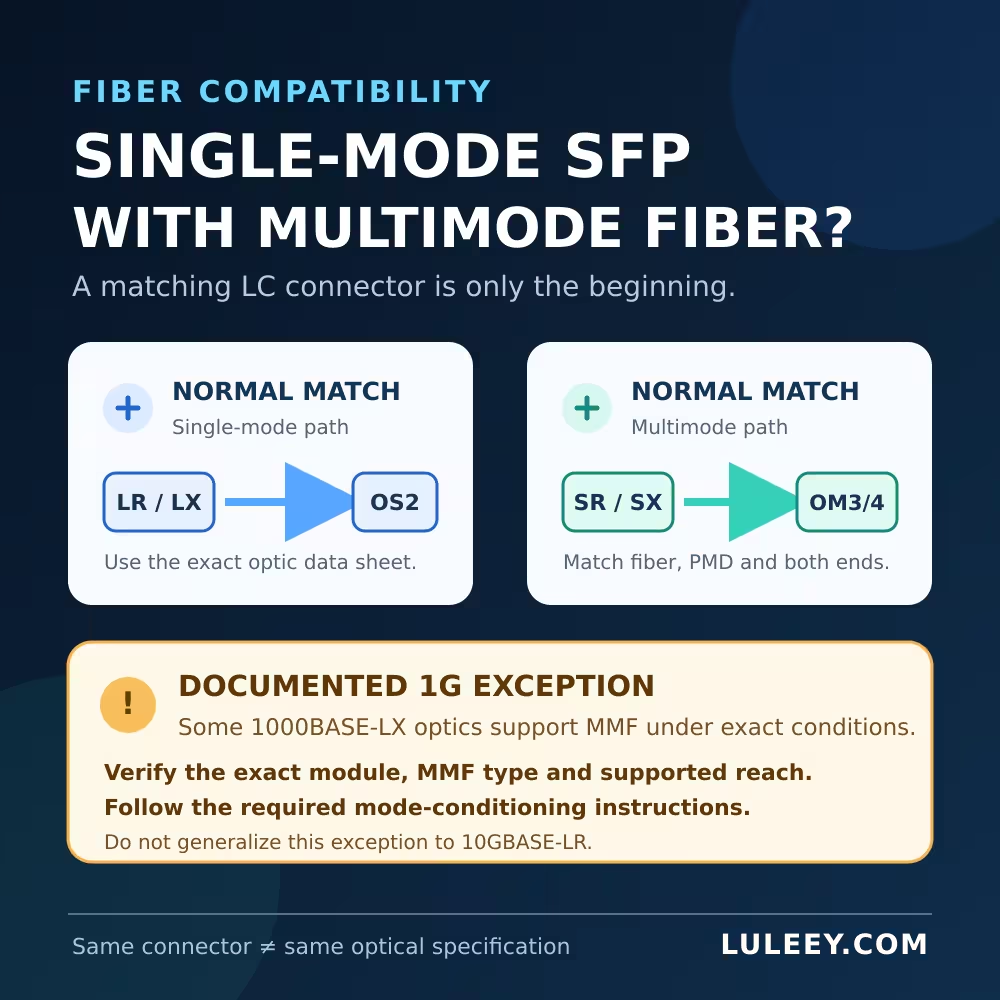
The same LC connector and wavelength do not compensate for different line rates or physical-layer applications.
Step 6: Apply only the documented setting
Back up the current configuration and change one variable at a time. If the platform requires a manual 1G or 10G mode, set the same compatible operating method at the peer. Do not toggle auto-negotiation, speed and FEC together; that makes the result hard to diagnose.
Step 7: Read the operational result
After the link comes up, record:
- module presence and acceptance;
- configured speed versus operational speed;
- auto-negotiation state and advertised modes, where available;
- duplex, pause and FEC state;
- optical alarms or copper PHY status;
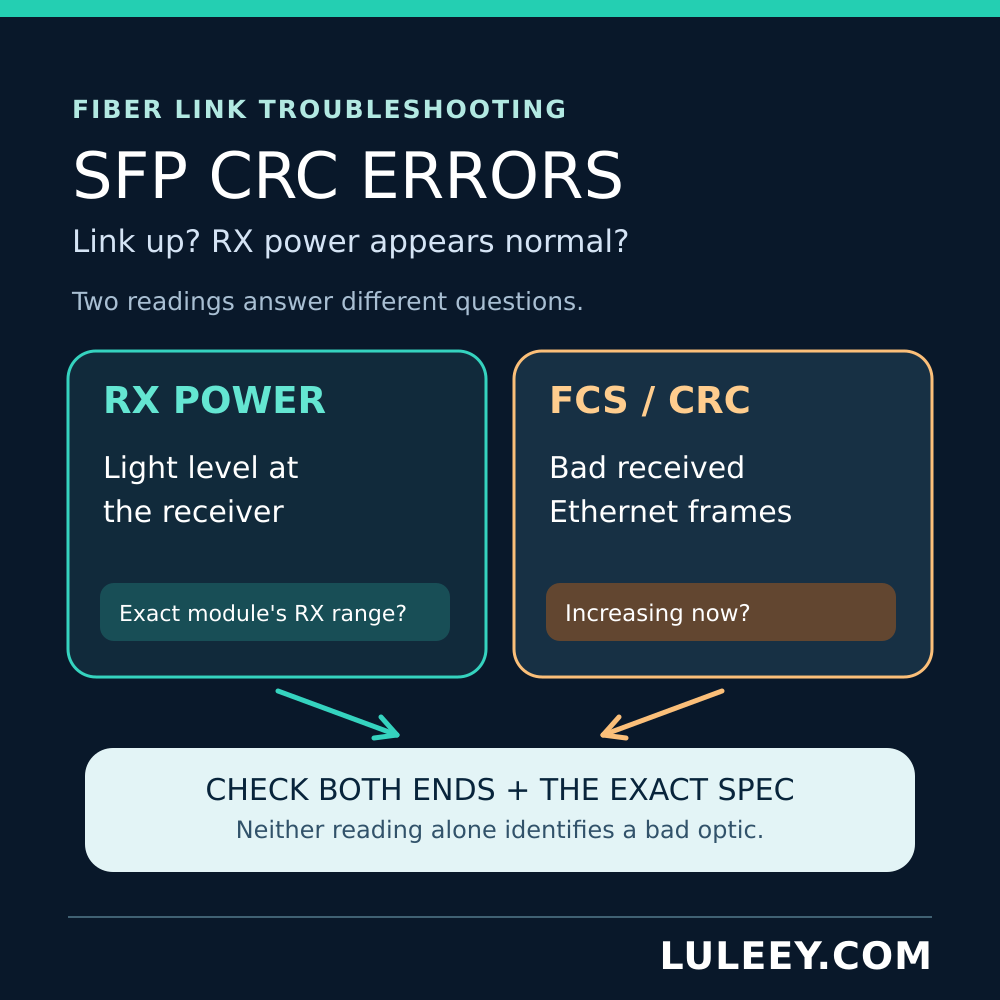
- error, drop, pause and link-flap counters.
“Configured for 10G” is not the same as “operating at 10G.” Likewise, a 10G host-side status on a rate-adapting copper module does not prove a 10G end-to-end path.
Step 8: Test traffic and throughput
Run an authorized bidirectional traffic test and compare the result with the slowest active link. Useful payload throughput will be lower than the nominal line rate because of framing, protocol overhead and system limits. Check counter deltas during the test; Link Up alone does not prove a clean connection.
Troubleshooting by Symptom
| What you observe | Most useful next check | Do not conclude yet |
|---|---|---|
| Module absent | Seating, cage contacts, port power, presence sensing and driver | That auto-negotiation failed |
| Module identity is readable but rejected | Coding, host policy, firmware, power, temperature and port mode | That the module is electrically compatible |
| Module accepted but link is down | Host mode, peer rate/PMD, negotiation, FEC and media | That the fiber alone is faulty |
| Link comes up at 1G instead of 10G | Supported/advertised modes on both ends and the module’s actual mode | That the cage is defective |
| Host reports 10G, RJ45 peer reports 2.5G | Whether the module is intentionally rate-adapting | That the path can carry 10Gbps end to end |
| Link is up but throughput is low | Actual rate, errors, drops, pause frames, CPU and test method | That the module negotiated incorrectly |
If the host cannot see the module at all, start with presence and management—not speed negotiation. LuLeey’s SFP module not detected guide provides a safe isolation sequence.
Practical Next Step
Before ordering or changing a module, collect one short compatibility record: exact host and port, firmware/driver, supported SerDes modes, module part number and application table, peer specification, media type, configured settings and desired operational rate.


 SFP/SFP+ (1G/2.5G/5G/10G)
 SFP-T (1G/2.5G/10G)
 AOC Cable 10G/25G/40G/100G
 DAC Cable 10G/25G/40G/100G
 QSFP28 QSFP+ SFP28 100G/40G/25G
 Copper to Fiber Media Converters
 Fiber Media Converter PCBA Board
 OEO Fiber Media Converters
 Serial to Fiber Media Converters
 Video to Fiber Media Converters
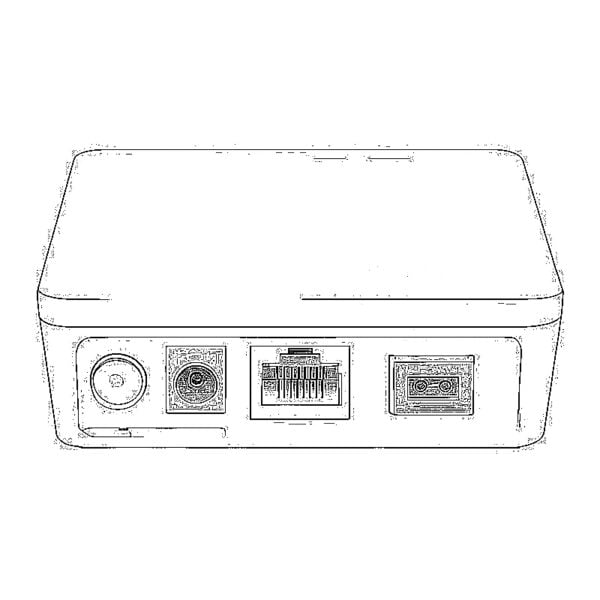 1000M GPON/EPON ONU
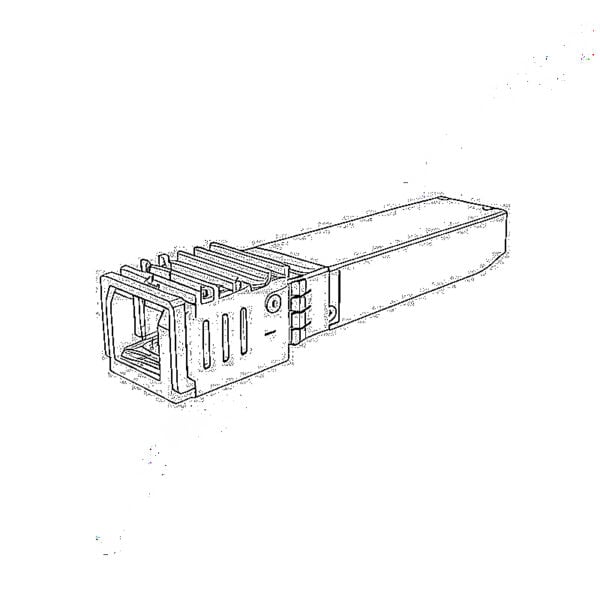 10G EPON ONU/XG-PON/XGS-PON
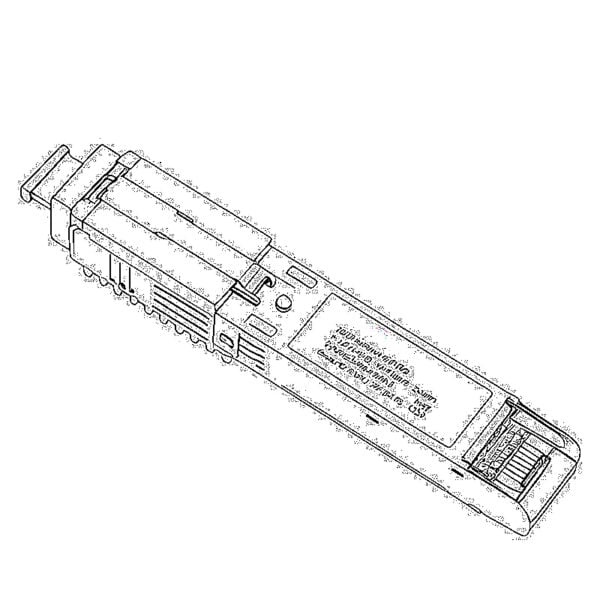 2.5G GPON/XPON STICK SFP ONU
 POE GPON/EPON ONU
 Wireless GPON/EPON ONT
 EPON OLT
 GPON OLT
 SFP PON Module
 Industrial Switches
 Managed Switches
 POE Switches
 Unmanaged Switches
 MTP/MPO Fiber Cables
 Fiber Optic Cassettes
 Fiber Optic Loopback
 Optic Cables and Fiber Pigtails
 Optical Splitters and Splitter Box
 Fiber Flange Connectors
 Optical Adapters
 Optical Attenuator
 Quick Connector and Connector Panel
 CATV Amplifier
 CATV Optical Receiver
 Visual Fault Locator
 OTDR
OTDR Optical Power Meter
 Fiber Optic Identifier
 Fiber Optic Cleaners
 Fiber Cleavers & Fiber Strippers
 Copper Tools


